
Run A Dinner And Dance
A social evening, like a rooftop dinner and dance, comes down to a few jobs. You switch on the modules the party needs, collect meal choices, send the reminders, check guests in, run a game in the app, and finish with a lucky draw. This guide takes them in that order.
Before You Start
Section titled “Before You Start”You’ll need a published event. If you don’t have one yet, start with Create Your First Event.
Switch On What The Party Needs
Section titled “Switch On What The Party Needs”- In the sidebar, open Operate, then Modules.
- Filter the list to On to see what the event already uses.
- Switch on EventHAUS App so guests have somewhere to play, and EventHAUS Play for the game. If you’d like more detail on either, The Modules And The Attendee App has it.
Set Capacity And Ask About Meals
Section titled “Set Capacity And Ask About Meals”- Open the event in the editor and go to Ticket Tiers. Each tier has its own Capacity, so your tiers decide how many guests the party holds. General Admission, VIP and Free make a good example.
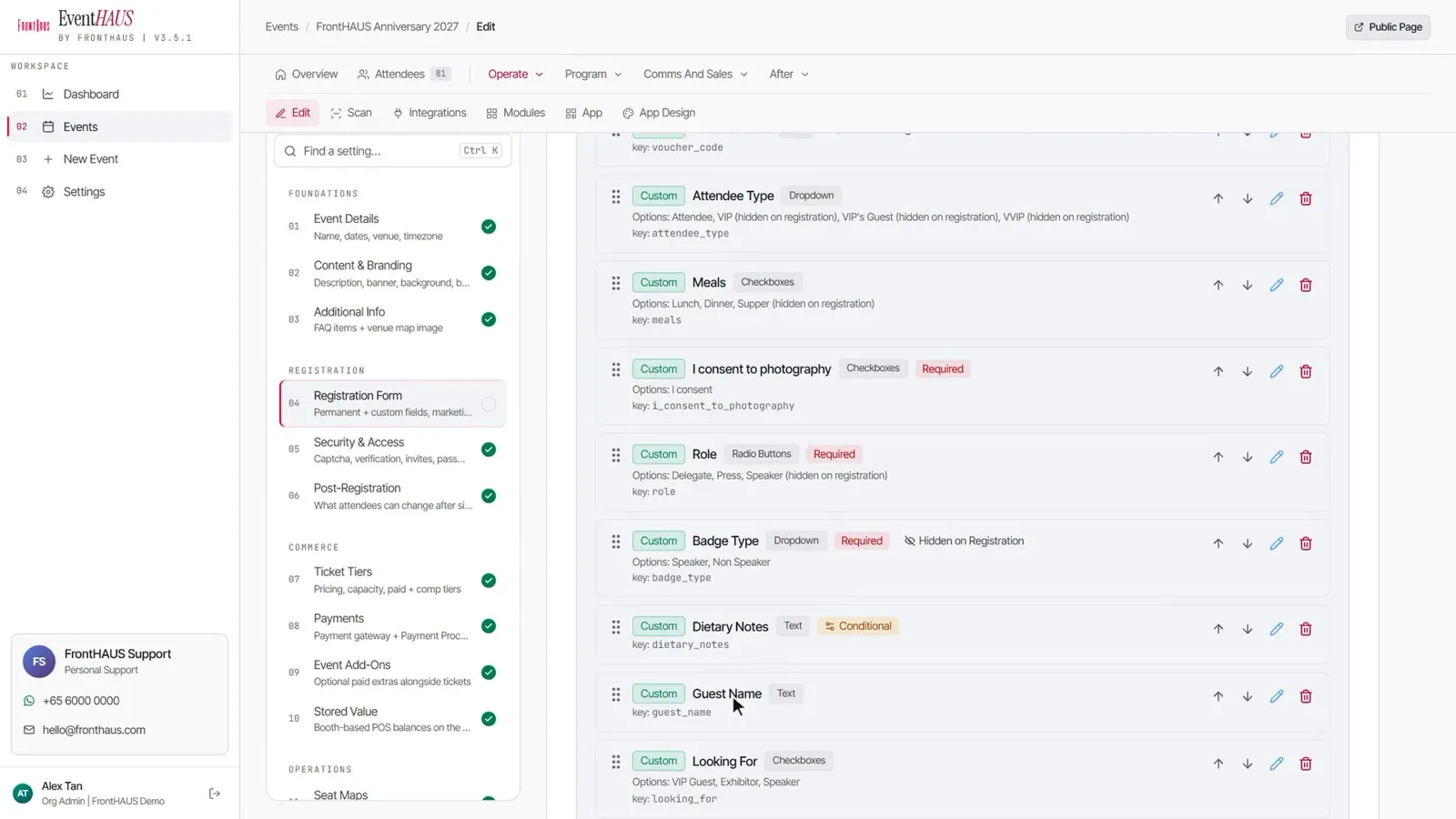
- Open Registration Form. Add custom fields such as Meals, Dietary Notes and Guest Name, so the kitchen knows what to plan for. Tickets And The Registration Form shows how.
The Attendees list shows everyone who’s coming. Guests who bring a plus-one carry a guest tag, and Managing Attendees explains more.
Send The Reminders
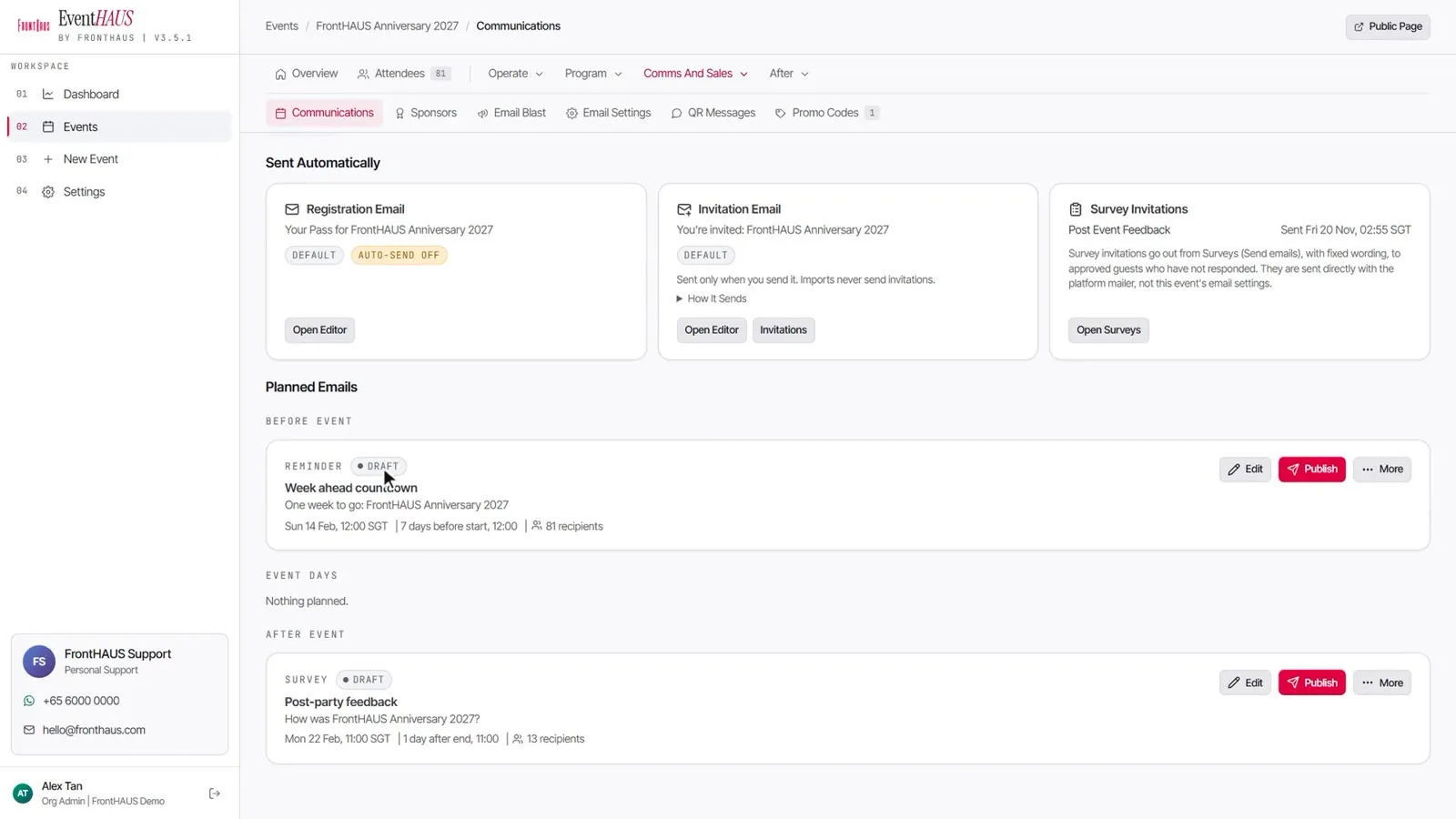
Section titled “Send The Reminders”- Open Comms And Sales, then Communications.
- Check the Registration Email. It’s the one that carries each guest’s pass, and Emails And QR Messages covers it.
- Under Planned Emails, find your reminder, such as Week Ahead Countdown with the subject One week to go. It shows as DRAFT, so nothing goes out until you select Publish.
Check Guests In On The Night
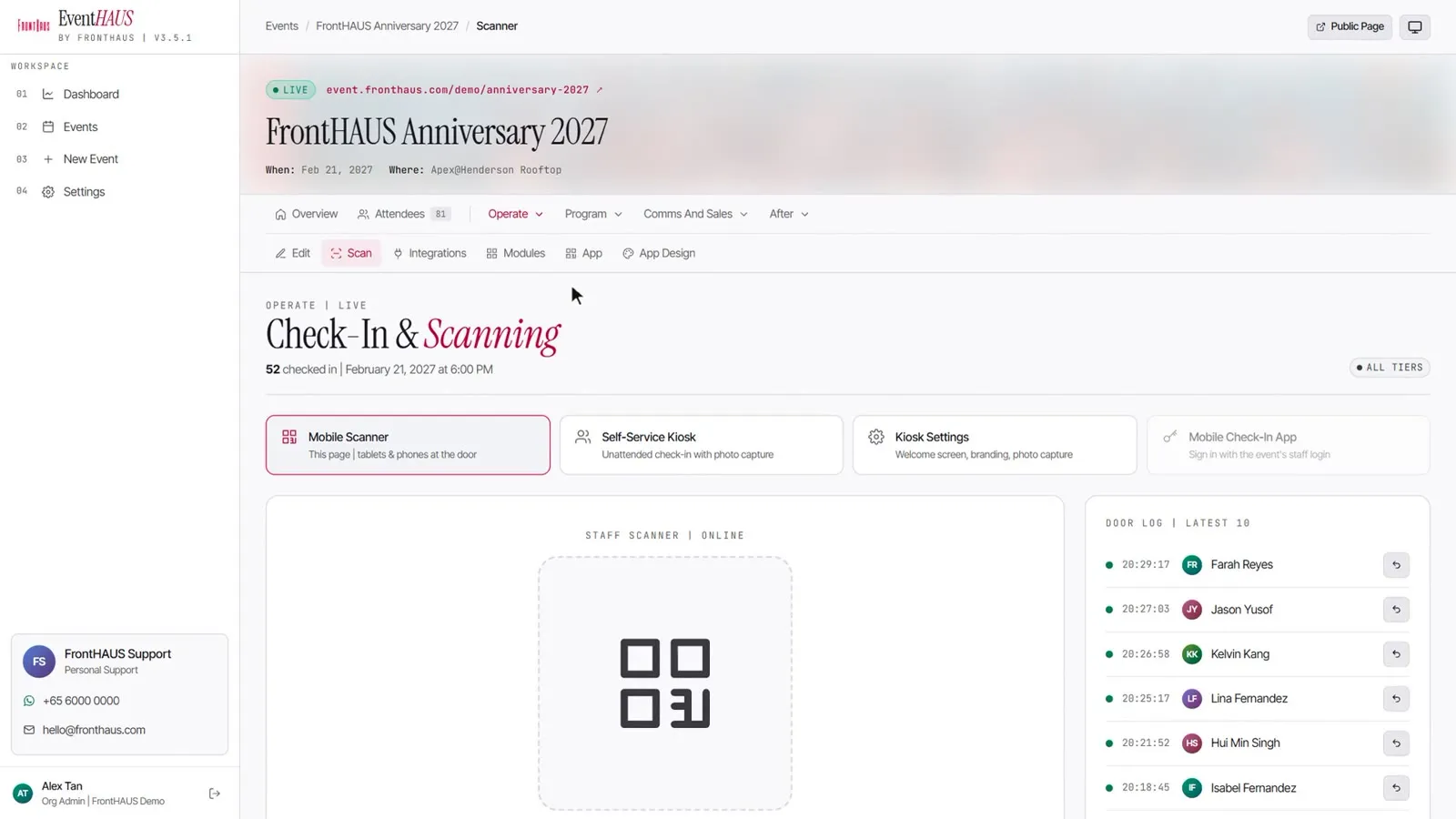
Section titled “Check Guests In On The Night”- Have your team open Operate, then Scan.
- Use the Mobile Scanner on a phone or tablet. The door log shows the latest check-ins as they happen.
- On Overview, keep an eye on Expected, Checked In and Still to Arrive while the room fills. Check-In Day has the full picture.
Run The Game
Section titled “Run The Game”- Open Program, then Play.
- The Overview tab shows how the game is going, with the players who have joined and the points awarded so far.
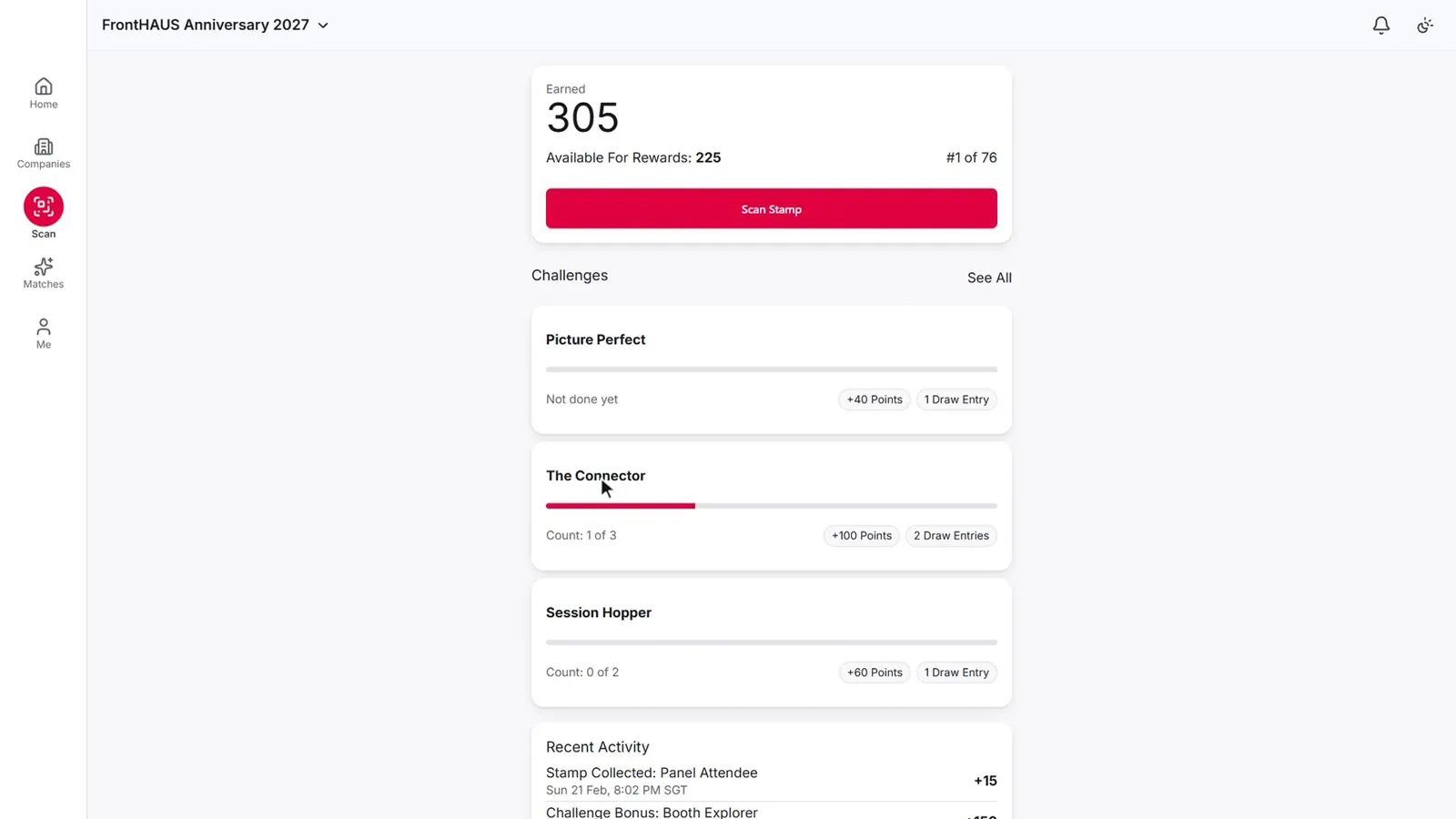
- On the Challenges tab, set the goals guests complete to earn points. Each one has a Target, a Bonus and Draw Entries.
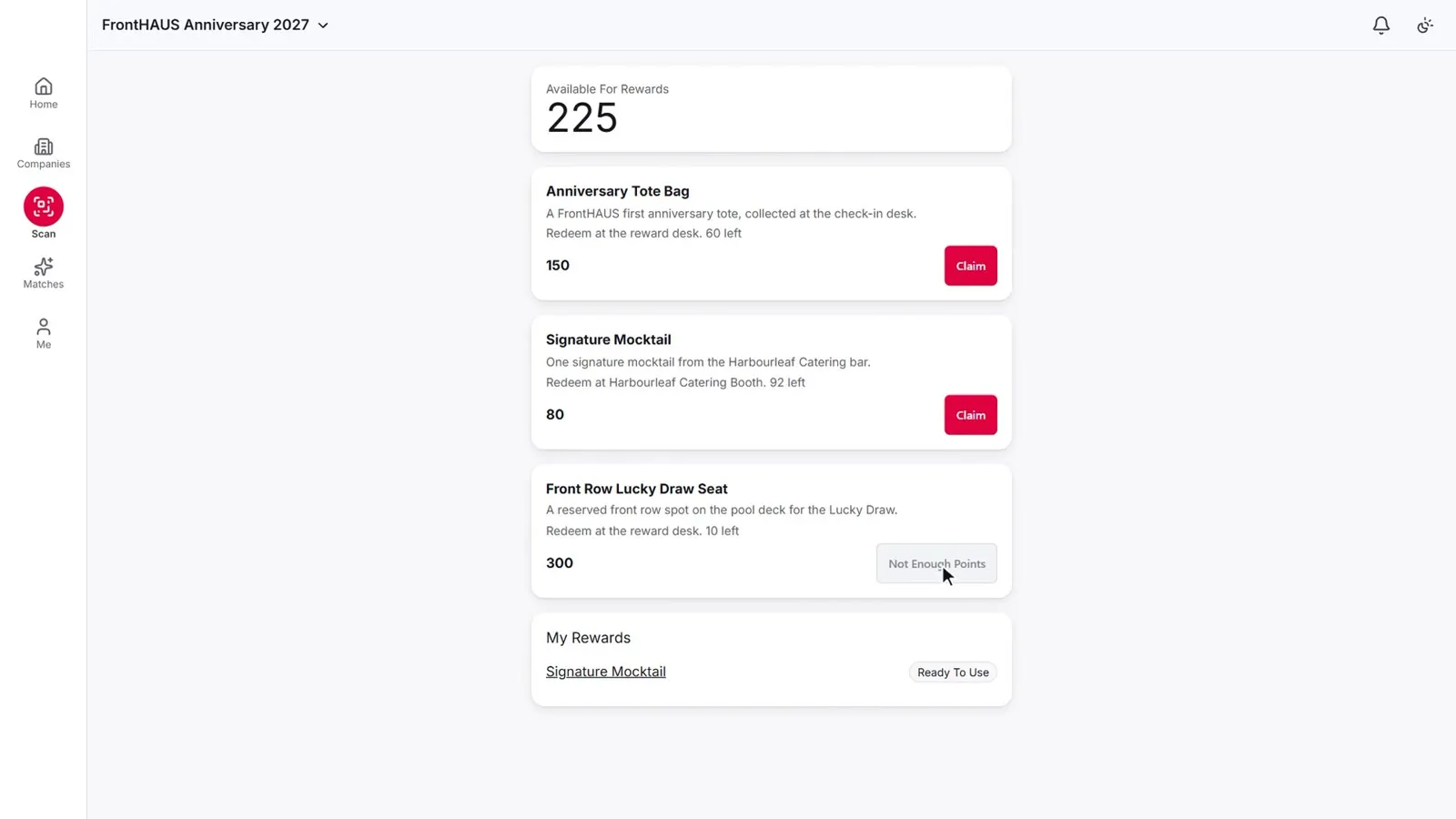
- On the Rewards tab, set what the points can buy.
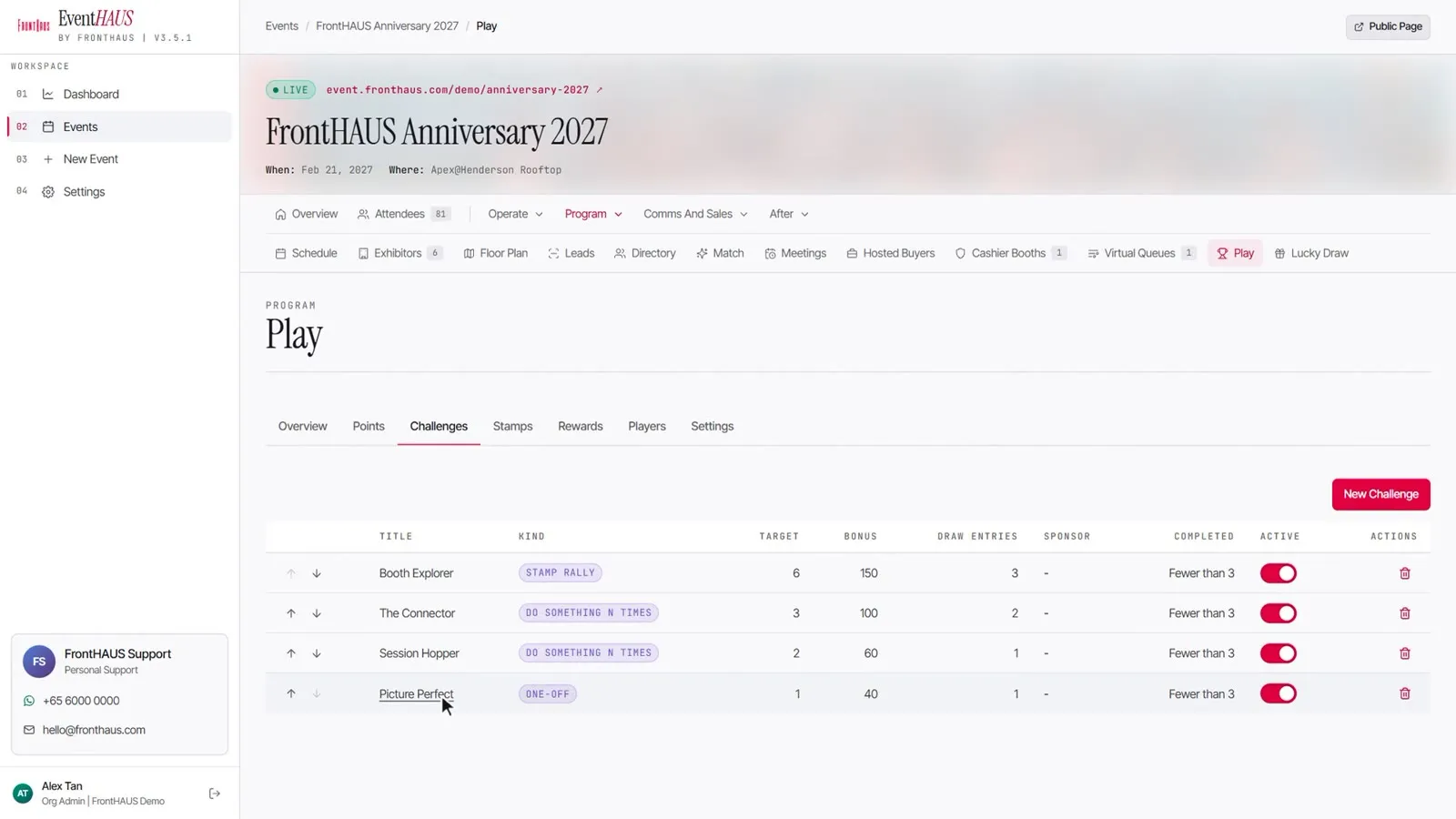
Every setting is explained in Play, Challenges And Rewards.
Draw The Winners
Section titled “Draw The Winners”- Open Program, then Lucky Draw, and open your draw.
- Select Conduct. The first step takes a snapshot of the pool of guests, so nobody can join after that.
- In Commit and seal the pool, select Commit and Publish the Hash. The Commit hash is a fingerprint you can share to prove the list never changed.
- In Draw the winner(s), draw the winners. If a winner has already gone home, select Not present beside their name.
- For the big screen, select Open presentation mode. It shows the winners with the sealed fingerprint underneath.
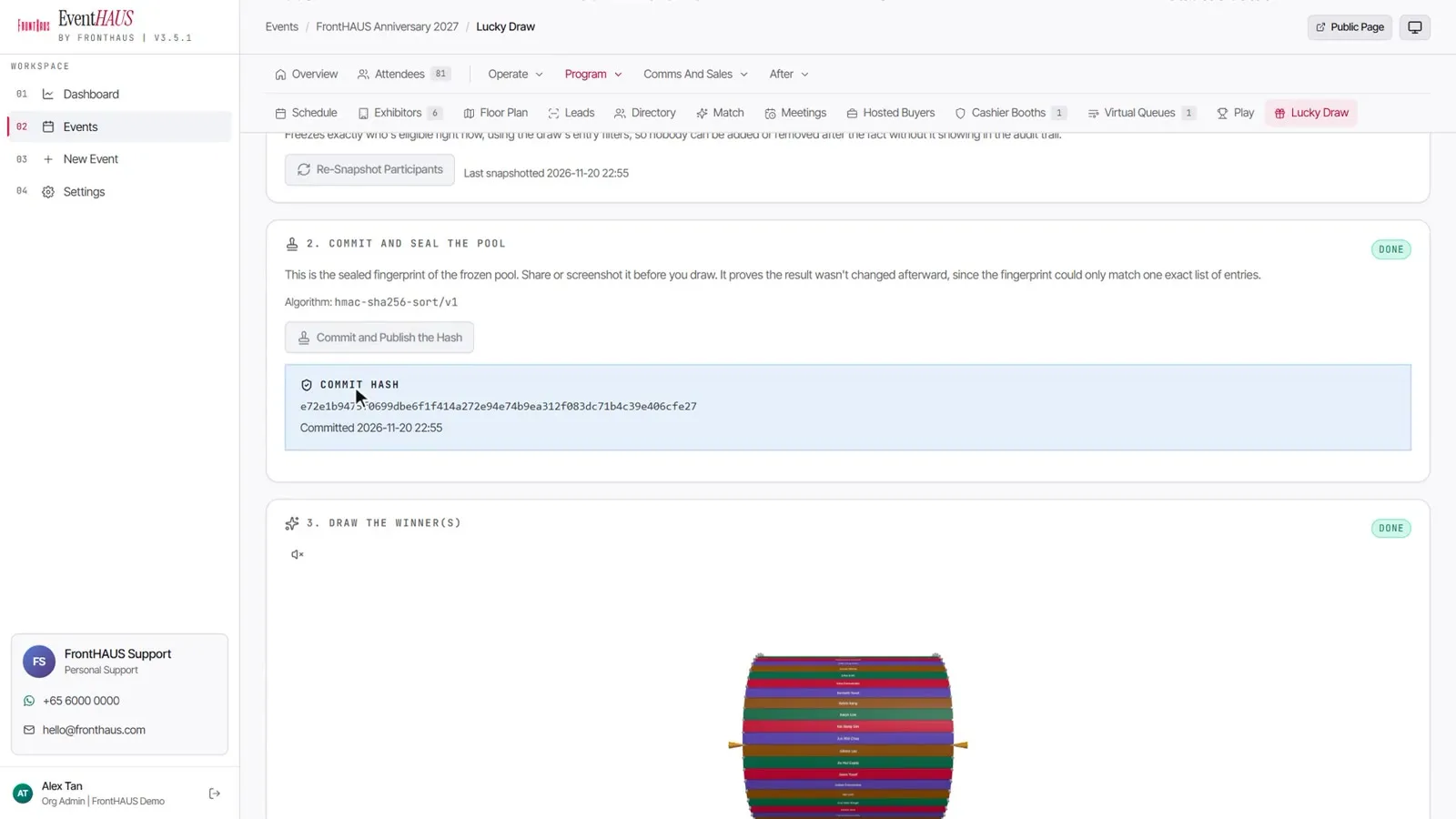
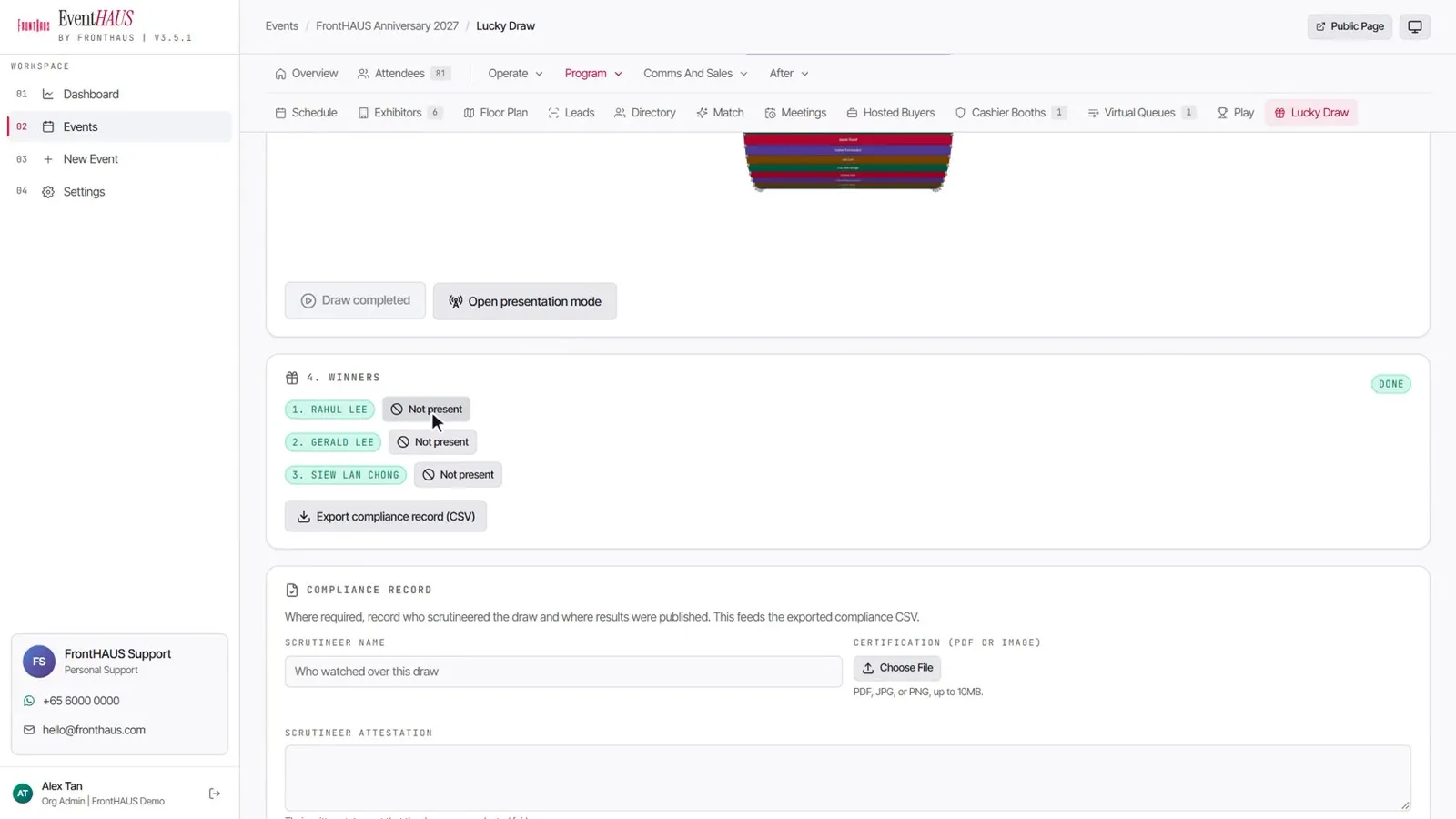
The whole process is in Lucky Draw.
After The Night
Section titled “After The Night”- Open After, then Surveys, to ask guests for feedback with a post-event survey.
- Open After, then Report. The Arrivals chart shows when the room filled up, and After The Event goes through the rest.
What Guests See
Section titled “What Guests See”Guests play in the attendee app. Each guest sees:
- The Play page, with points Earned, Available For Rewards, their rank and their challenges. Scan Stamp lets them collect stamps.
- Challenges, listing every goal and the points and draw entries each one earns.
- Rewards, with a Claim button on anything they can afford. The rest say Not Enough Points. My Rewards lists what they’ve claimed.
- The leaderboard, which ranks everyone. Guests choose whether their name shows.
- Run A Gala With Reserved Seating: add a seat map and a prize wheel.
- Play, Challenges And Rewards: build the game.
- Lucky Draw: run a draw people can trust.