
Communications
Communications is where you message guests inside the event app and over other channels. Use an announcement for a short message that lands in the app. Use Email Blast when you want a designed email going to a group you choose.
Before You Start
Section titled “Before You Start”- The event is published and has guests. See Your First Event.
- Push, SMS, WhatsApp and Telegram need setting up on your server before they’ll send.
Find Your Way Around
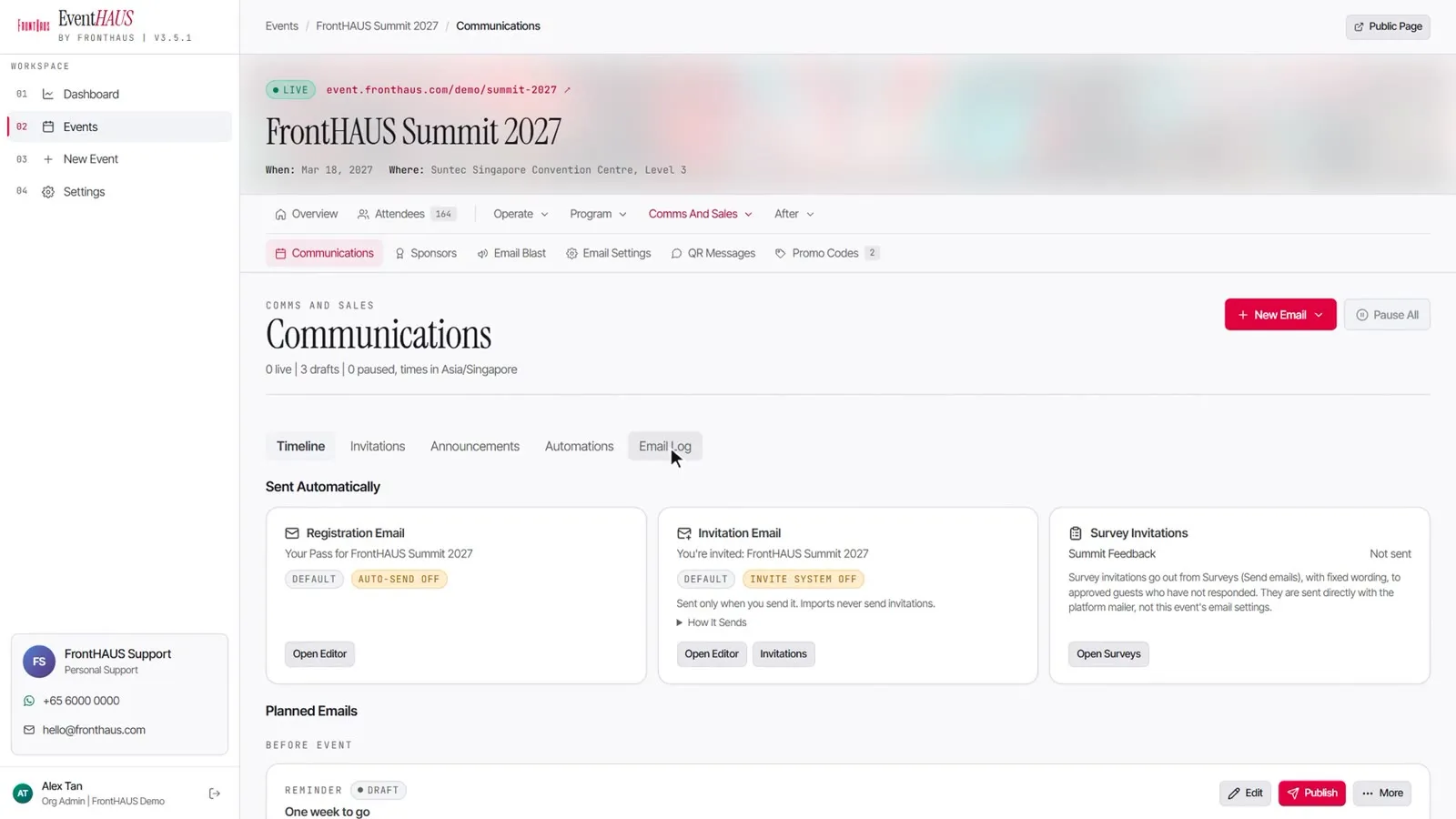
Section titled “Find Your Way Around”Open the Comms And Sales menu and select Communications. You’ll see five tabs: Timeline, Invitations, Announcements, Automations and Email Log.
The Timeline shows the emails you’ve planned, such as a one week reminder and a day of essentials email. They stay as drafts until you publish them.
Write An Announcement
Section titled “Write An Announcement”On Announcements, the cards at the top show how many people opened the app, how many announcements have gone out and your average read rate. Your drafts are listed below. Nothing goes out until you say so, so there’s no rush.
- Select New Announcement.
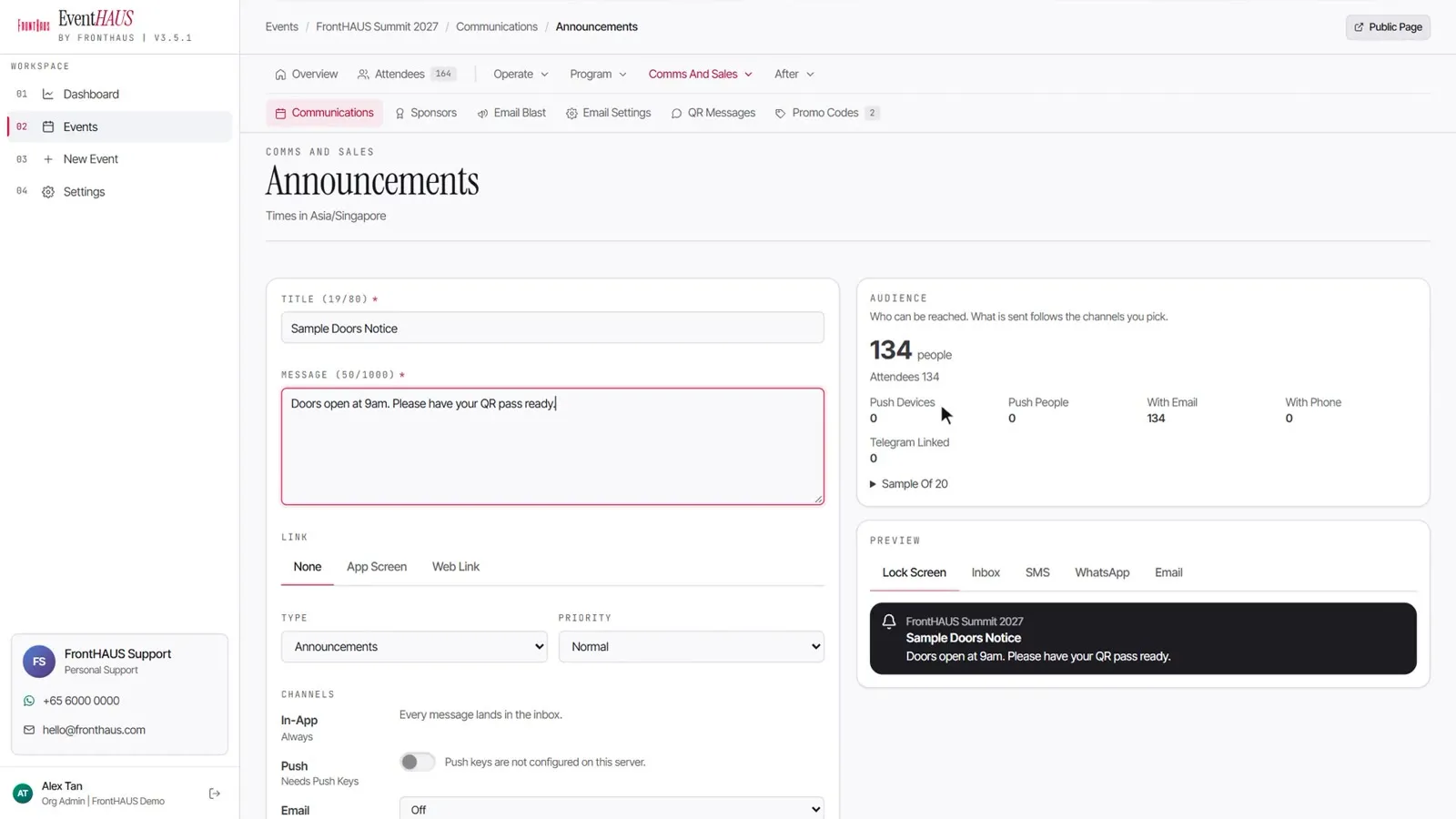
- Enter a short title and type your message. The preview on the right updates as you type.
- Attach a link if you’d like one: a screen in the app, a web page, or None.
- Choose a type, Announcements or Reminders, and a priority, Normal or Critical.
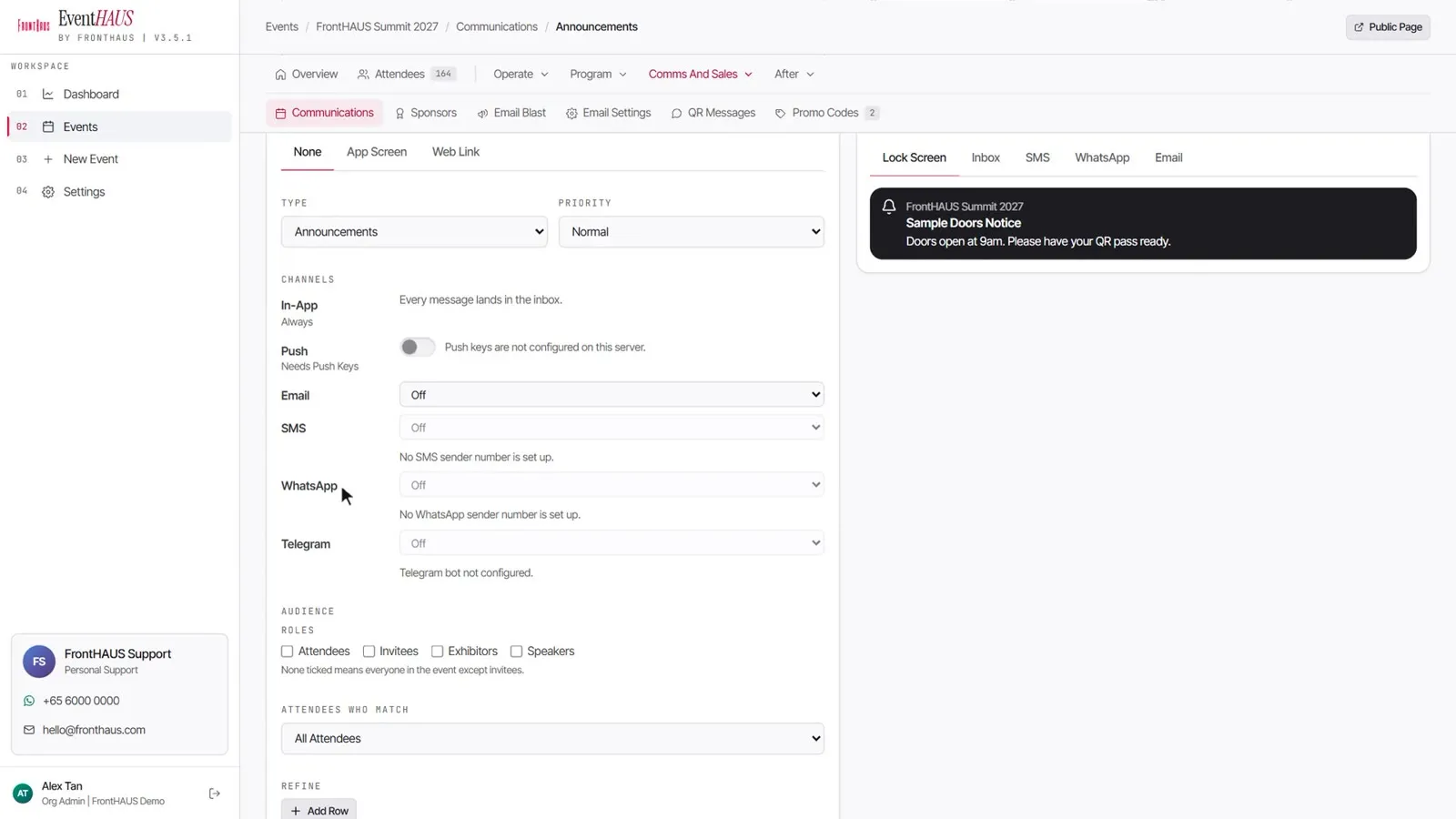
- Choose your channels. In-App is always on. Push, Email, SMS, WhatsApp and Telegram are optional. If you see a note like Needs Push Keys, that channel isn’t set up for your account yet. Email [email protected] to have it switched on.
- Choose the audience. Tick the roles (Attendees, Invitees, Exhibitors, Speakers), then narrow it down with a preset, filters or specific people.
- Check the reach on the right: how many people you’ll reach, and how many of them have an email, a phone or a push device.
- Flip through the previews: lock screen, inbox, text, WhatsApp and email.
- Select Send Now or Schedule. Save Draft keeps it safe for later, and Send Test lets you check it first.
Set Up Automations
Section titled “Set Up Automations”Automations send on their own, so you don’t have to remember to press anything on the day.
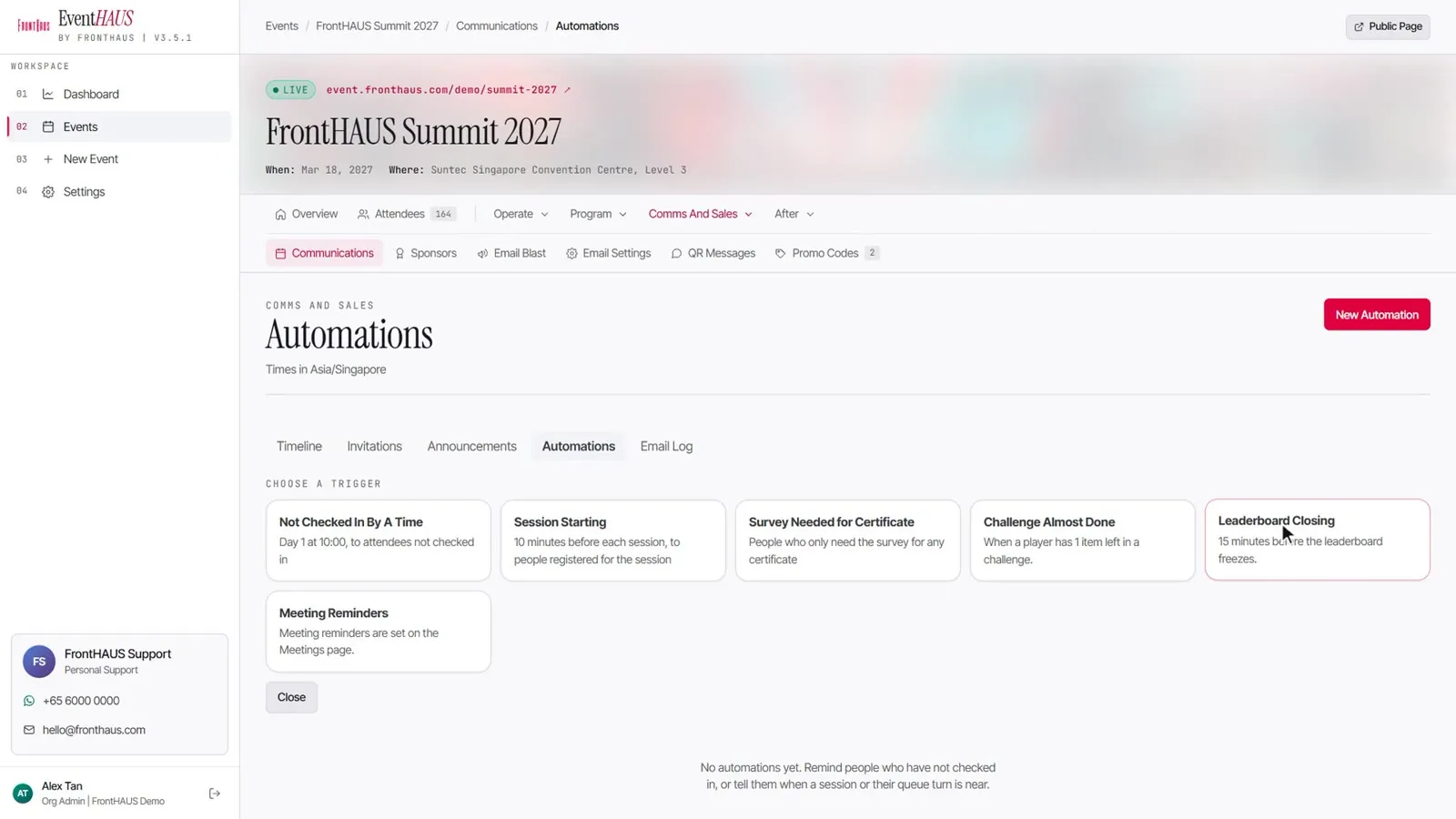
- Select the Automations tab, then New Automation.
- Choose a trigger: Not Checked In By A Time, Session Starting, Survey Needed for Certificate, Challenge Almost Done, Leaderboard Closing or Meeting Reminders (which are set on the Meetings page).
- Set a name, the event day and time, your message and the channels.
- Select Save Automation.
Notify Settings
Section titled “Notify Settings”Notify Settings controls the order channels fall back in, the quiet hours, and how often any one person can be messaged.
What Guests See
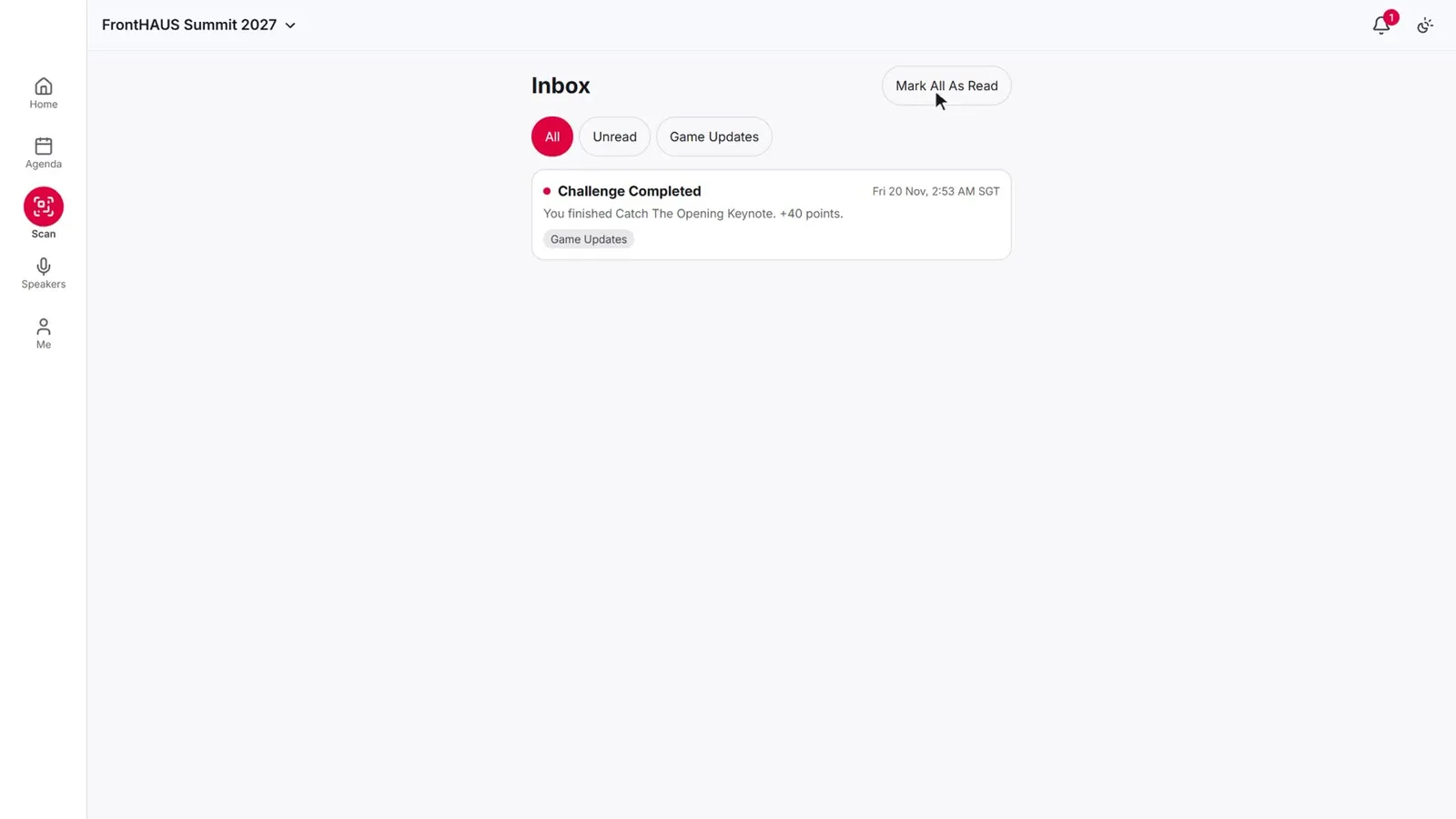
Section titled “What Guests See”Announcements land in the Inbox of the event app, alongside the other updates a guest receives. Each message has a title, a time and the text. Guests can filter by All, Unread or a category such as Game Updates, and they can select Mark All As Read.
- After The Event: surveys and reports once the event is over.
- Integrations: connect the kiosk and outside platforms.