
Play - Challenges And Rewards
Play gives guests a reason to wander round your event. They earn points for things like checking in, going to sessions and collecting stamps, then spend those points on rewards. Your job is to set the game up, keep an eye on it while it runs and step in if something looks off.
Before You Start
Section titled “Before You Start”Switch on the Play module for your event and publish the event. See Modules And The Attendee App if you haven’t done that yet. Guests play inside the attendee app, so it needs to be live first.
Read The Overview
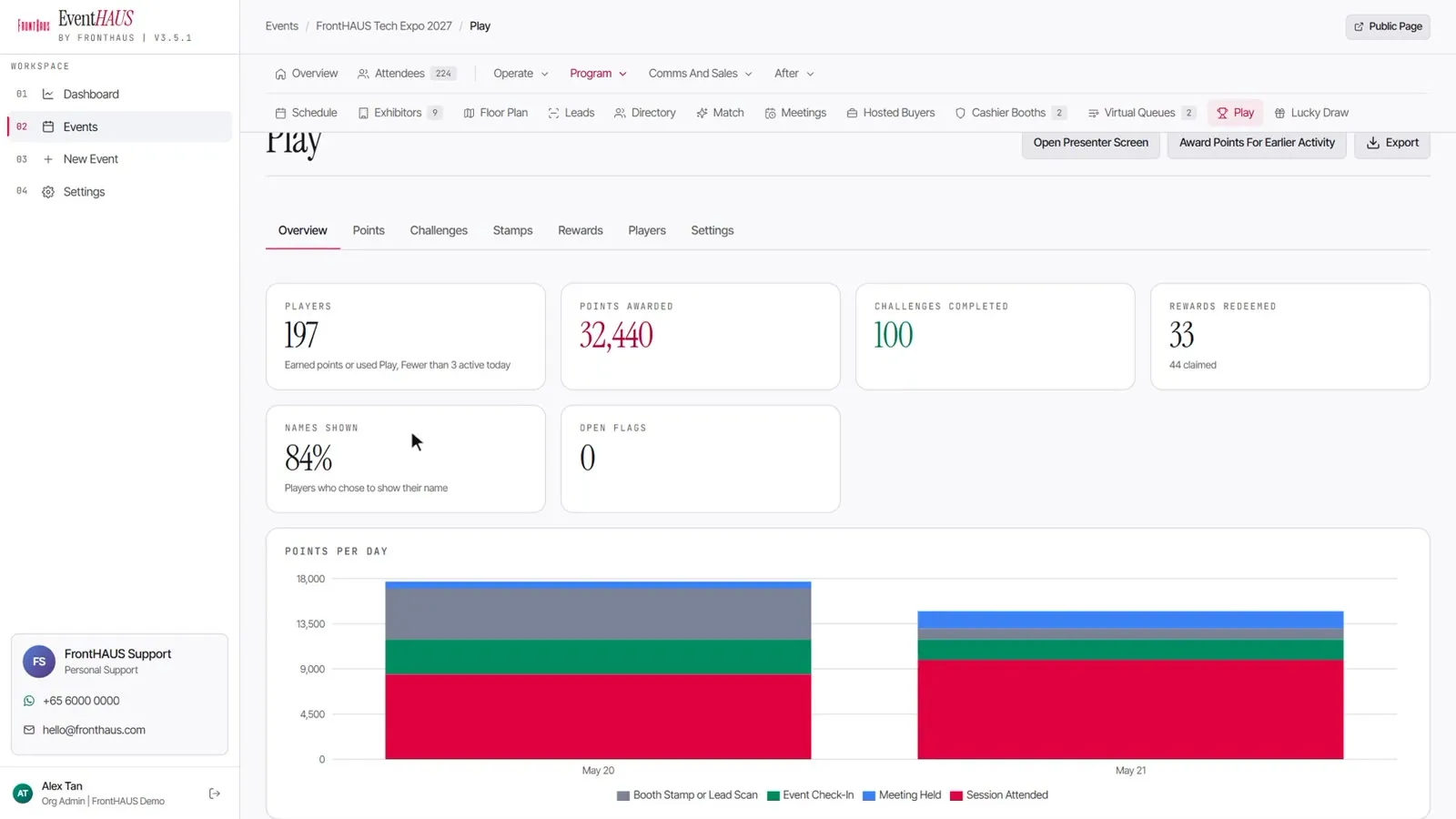
Section titled “Read The Overview”Open Play for your event. The overview gives you the headline numbers: players, points awarded, challenges completed and rewards redeemed. Names Shown tells you how many players chose to appear on the leaderboard.
Scroll down and you’ll find Booth Traffic, which shows which exhibitors drew the crowds, and Top Challenges, which shows what guests enjoyed most.
Set Up Challenges
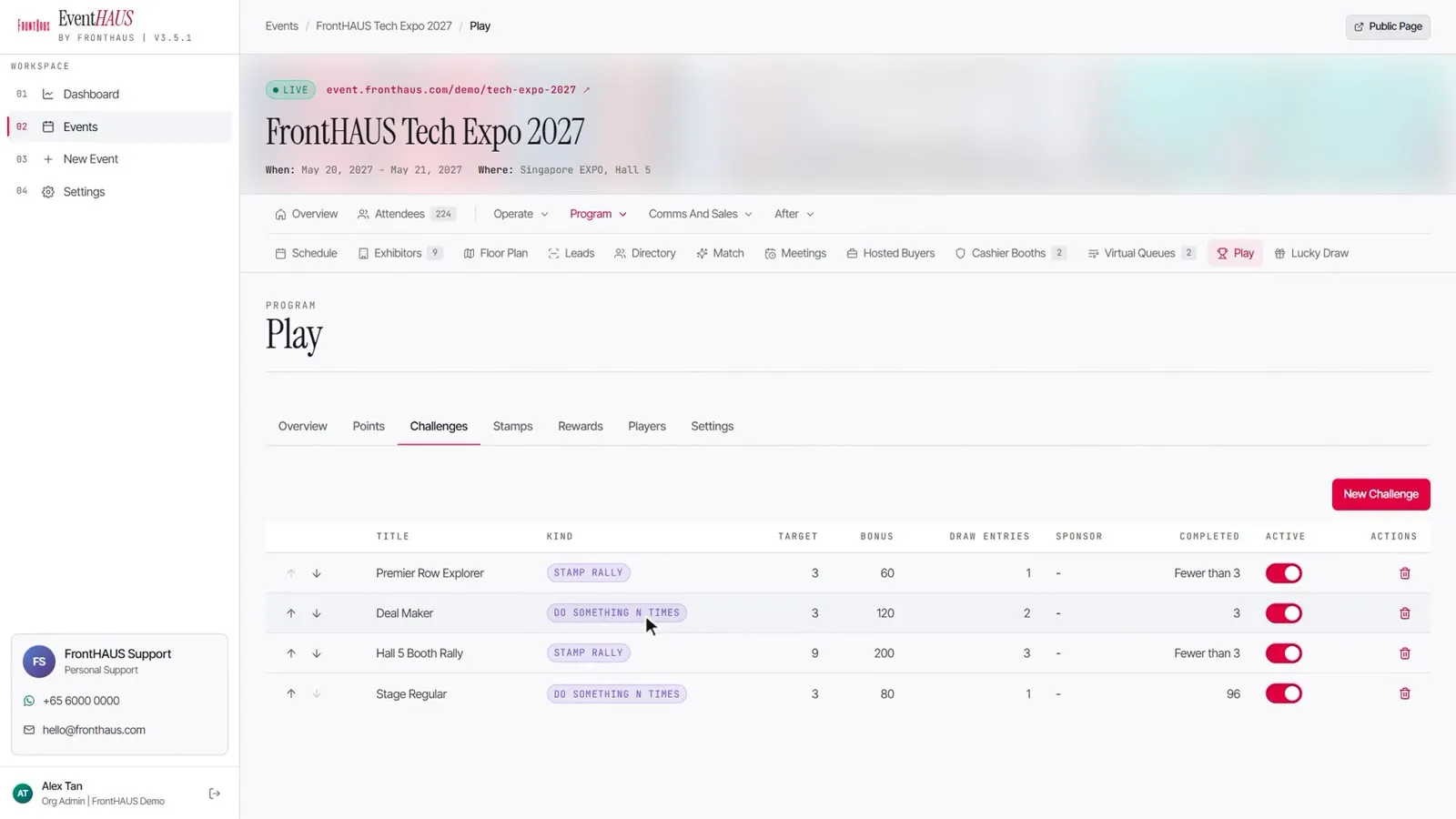
Section titled “Set Up Challenges”A challenge is a goal you give guests, like visiting five booths. Each one has a kind, a target, bonus points and draw entries.
- Open the Challenges tab.
- Select New Challenge.
- Choose the kind and give the challenge a title. A Stamp Rally asks guests to collect stamps. Do Something N Times tracks an action, such as the number of sessions attended.
- For a rally, tick the booths, stamps or sessions that count.
- Set the target and the bonus points, then save.
Create Stamps
Section titled “Create Stamps”Stamps are the codes guests scan to prove they were there. Think of them as the digital version of a stamp on a passport.
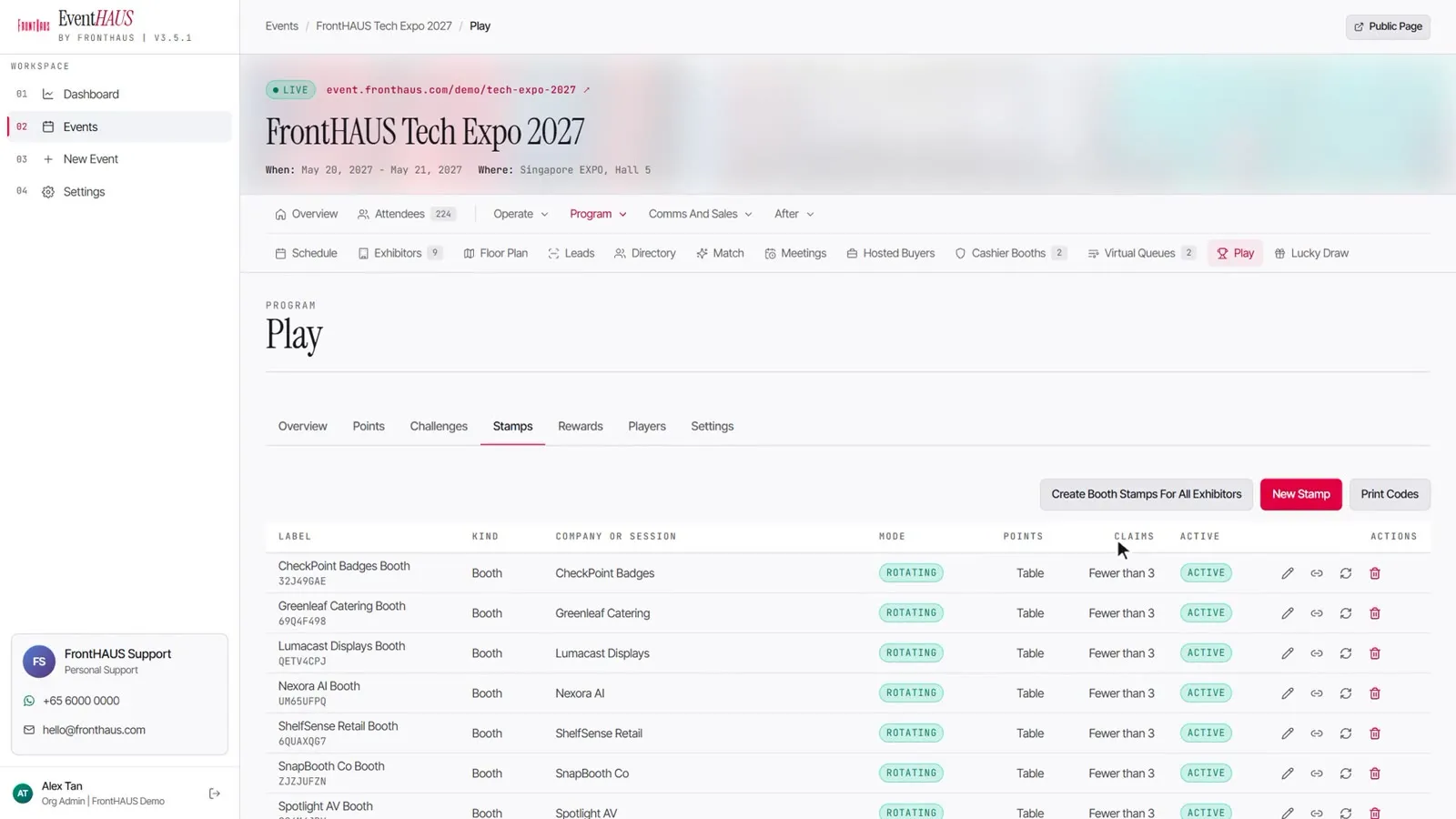
- Open the Stamps tab. Each stamp shows its kind, its mode and how many claims it has had.
- Select Create Booth Stamps For All Exhibitors to make one stamp per booth in one go.
- Select Print Codes to get a sheet you can put out on the floor.
- For a location or a session, select New Stamp, name it, and choose Rotating, Poster or Staff Code.
Booth stamps rotate, so a code can’t be passed around for long.
Set The Points Rules
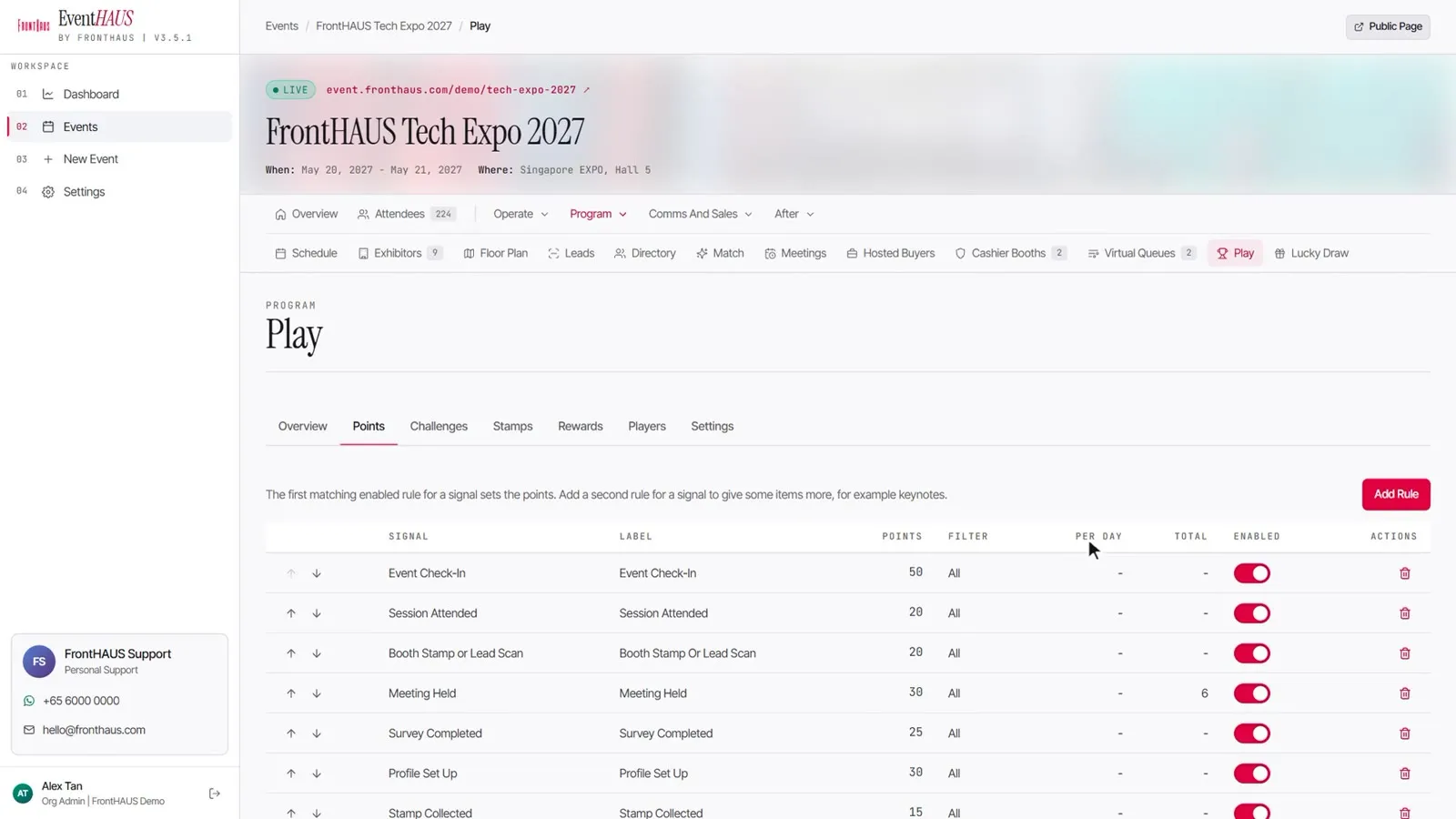
Section titled “Set The Points Rules”Open the Points tab. Every signal, such as Event Check-In, Session Attended or Meeting Held, has its points set by a rule. You can switch a rule off, or cap it per day or in total.
Add Rewards
Section titled “Add Rewards”Rewards are what guests spend their points on.
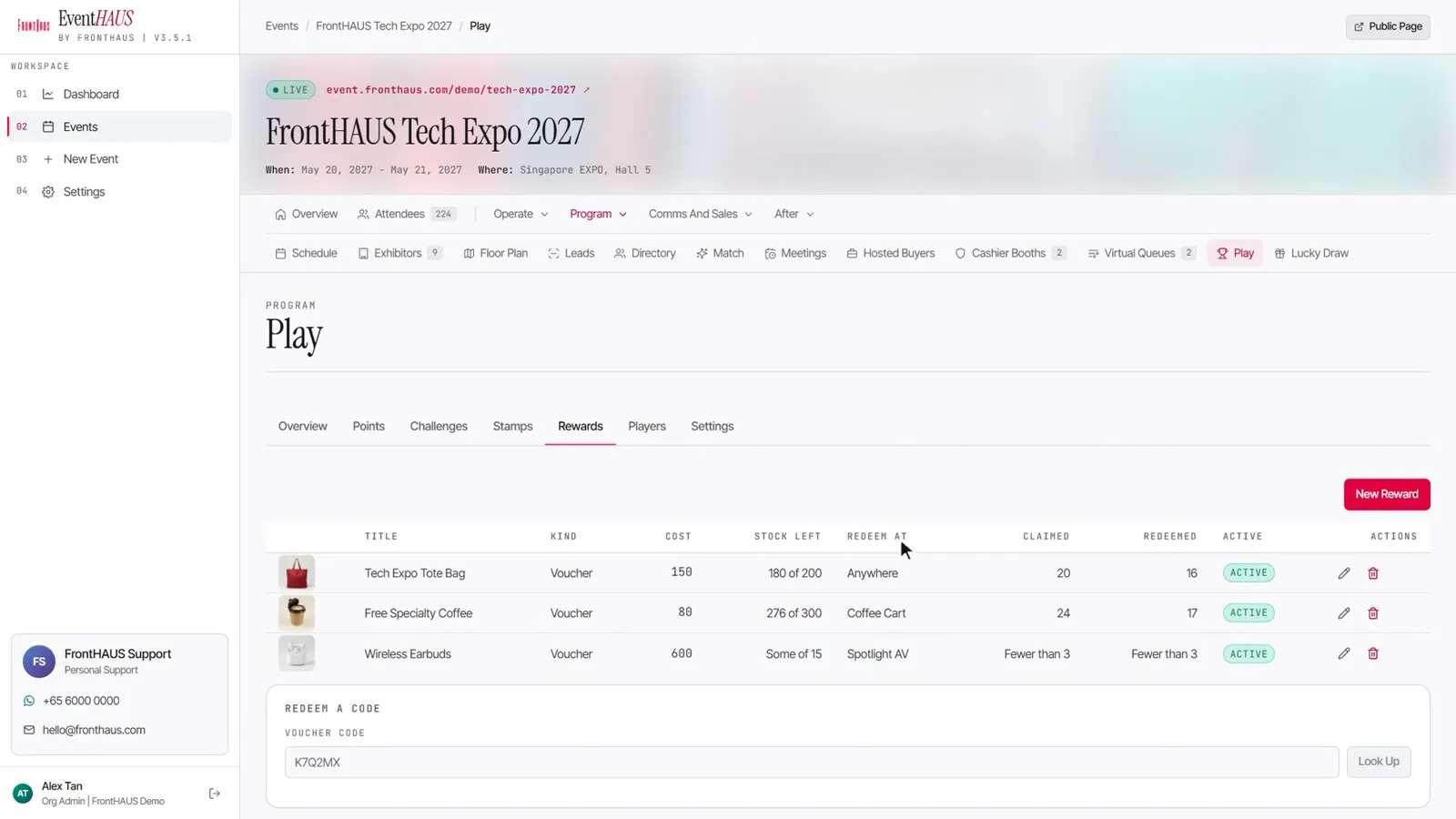
- Open the Rewards tab. The catalogue shows each reward’s cost, how much stock is left, where it’s redeemed, and how many guests have claimed or collected it.
- Select New Reward.
- Set a title, a cost, the stock and a limit per person.
- If you like, pin the reward to a booth, and expire vouchers nobody used.
To hand a reward over, staff type the guest’s voucher code into Redeem A Code and select Look Up. Once the code checks out, they give the guest the reward.
Watch Players And Keep It Fair
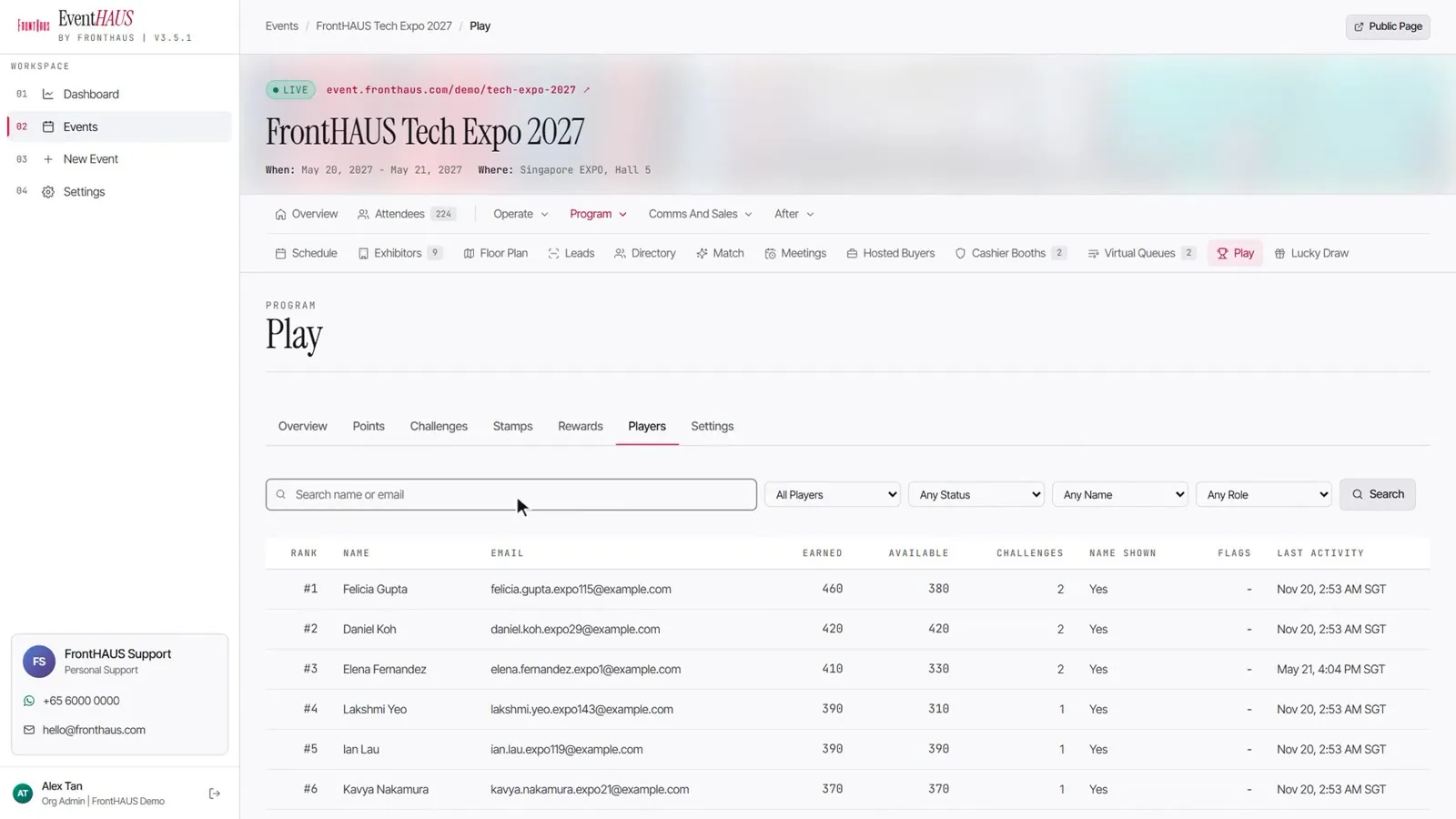
Section titled “Watch Players And Keep It Fair”Open the Players tab to see the leaderboard, ranked by points earned, along with what each person still has to spend. You can filter for flagged players or search by name. Select a player to see their ledger: every point, with the reason for it, plus their challenges and rewards.
If something doesn’t look right, the fair play tools let you:
- Adjust points, with a note.
- Reverse a line.
- Hide a nickname.
- Exclude someone from the game.
Settings And Prize Draws
Section titled “Settings And Prize Draws”Open Settings to turn the game on, choose who can earn, set the earning window and limits, and decide how the leaderboard looks.
Play can also feed a lucky draw. Select Create Prize Draw From Play on the overview, and see Lucky Draw for how the draw itself works.
What Guests See
Section titled “What Guests See”In the attendee app, guests open the Play page from the Scan tab. There’s also a Scan Stamp button for collecting stamps.
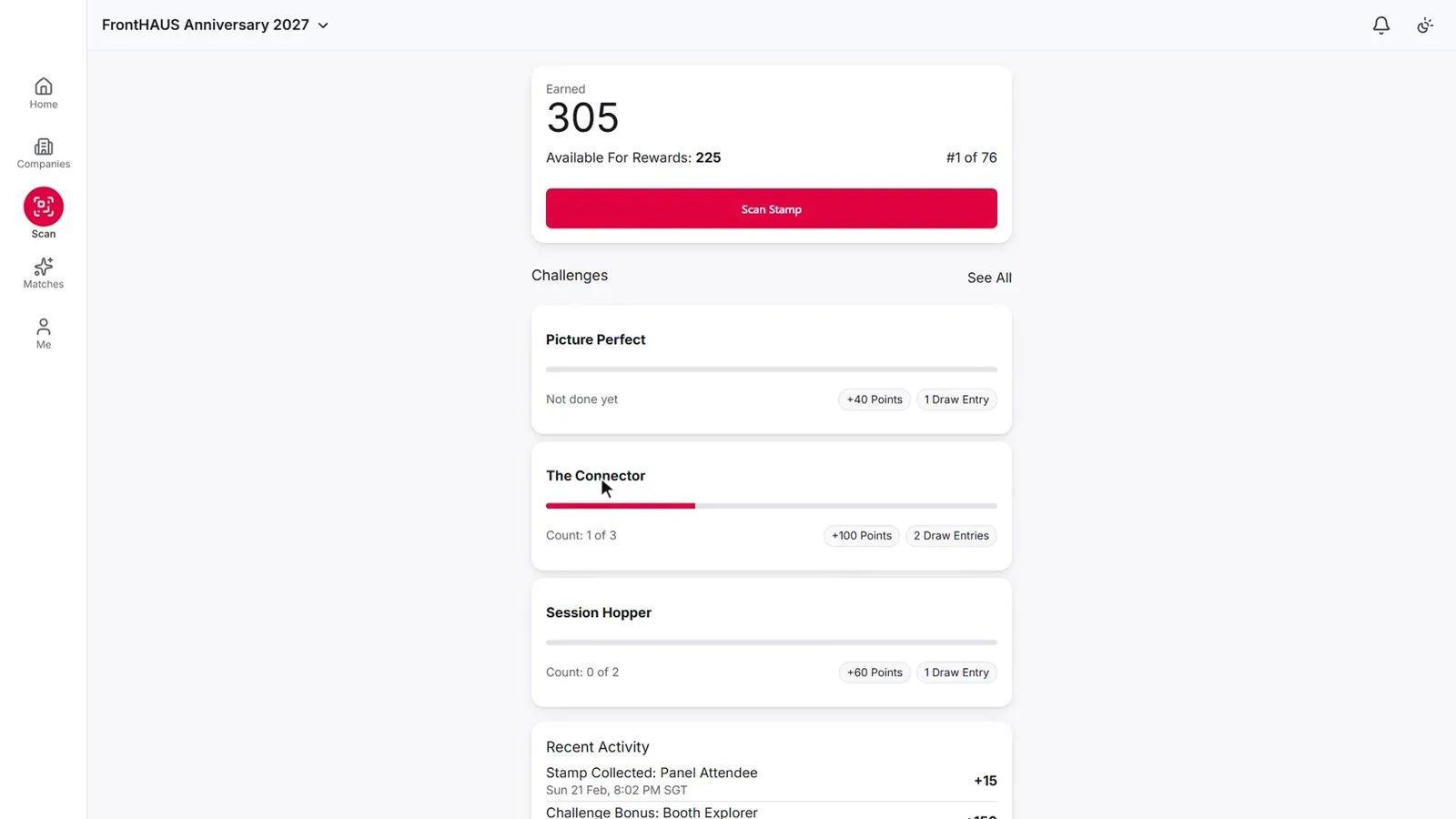
- At the top, a guest sees the points they have Earned, what is Available For Rewards, and their rank out of everyone playing. Below that are their challenges, with progress bars.
- The challenges page lists every challenge with its bonus and draw entries. A finished challenge is marked as completed.
- Recent Activity lists every stamp collected and every point earned, so guests can see where their score came from.
- The leaderboard ranks everyone by points. Guests who prefer privacy show as Anonymous, and anyone can choose to show their name.
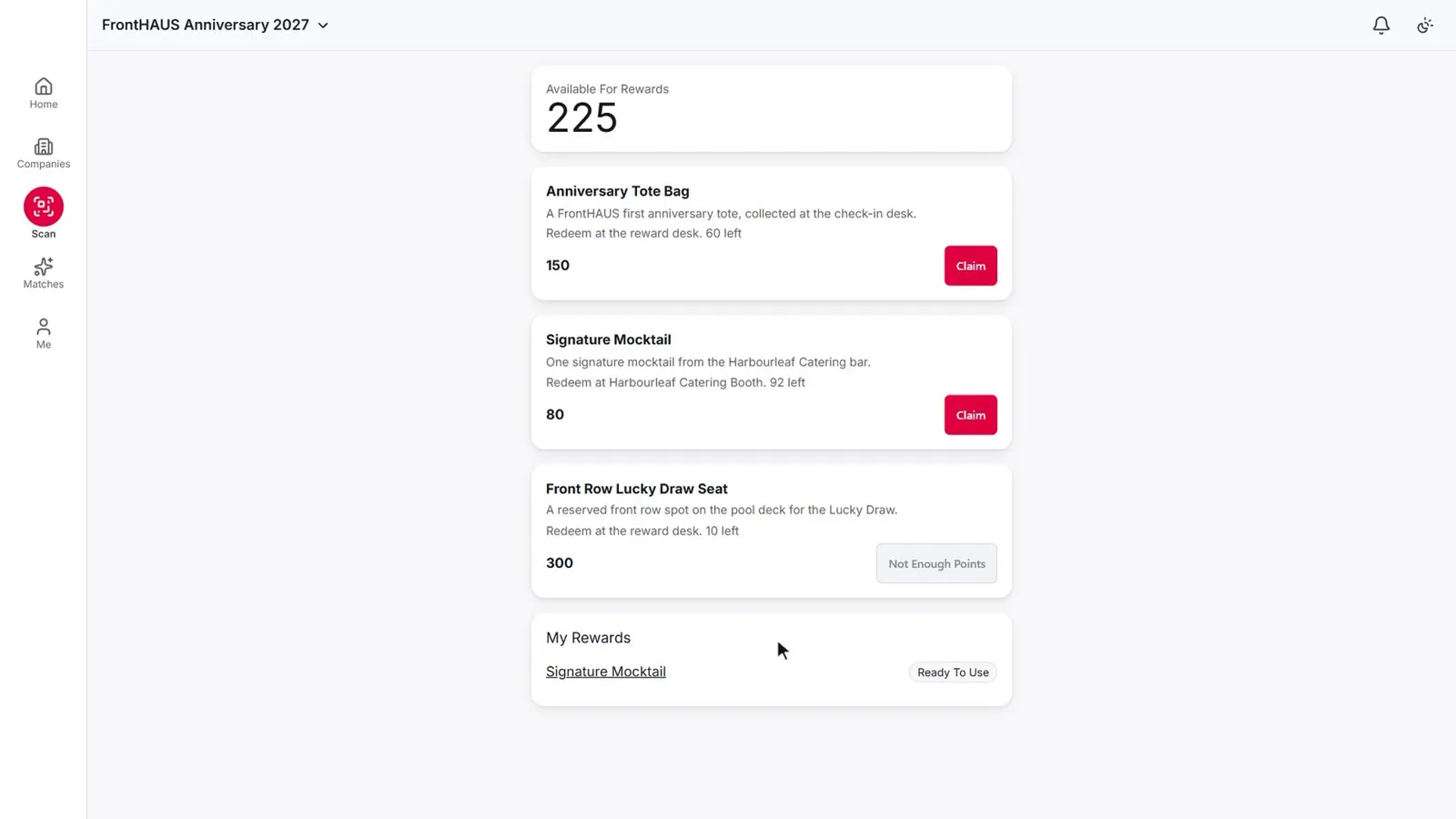
- On Rewards, guests spend their points. Claim is ready when they can afford a reward. A reward that costs too much says Not Enough Points. Claimed rewards wait under My Rewards until they’re used.
- Lucky Draw: run a sealed, fair draw, including one from Play entries.
- Virtual Queues: manage waiting lines at busy stands.