
Virtual Queues
With a virtual queue, guests join from their phone and get called when it’s their turn. Use one for a stall, a collection desk or anywhere else a line would form.
Review Your Queues
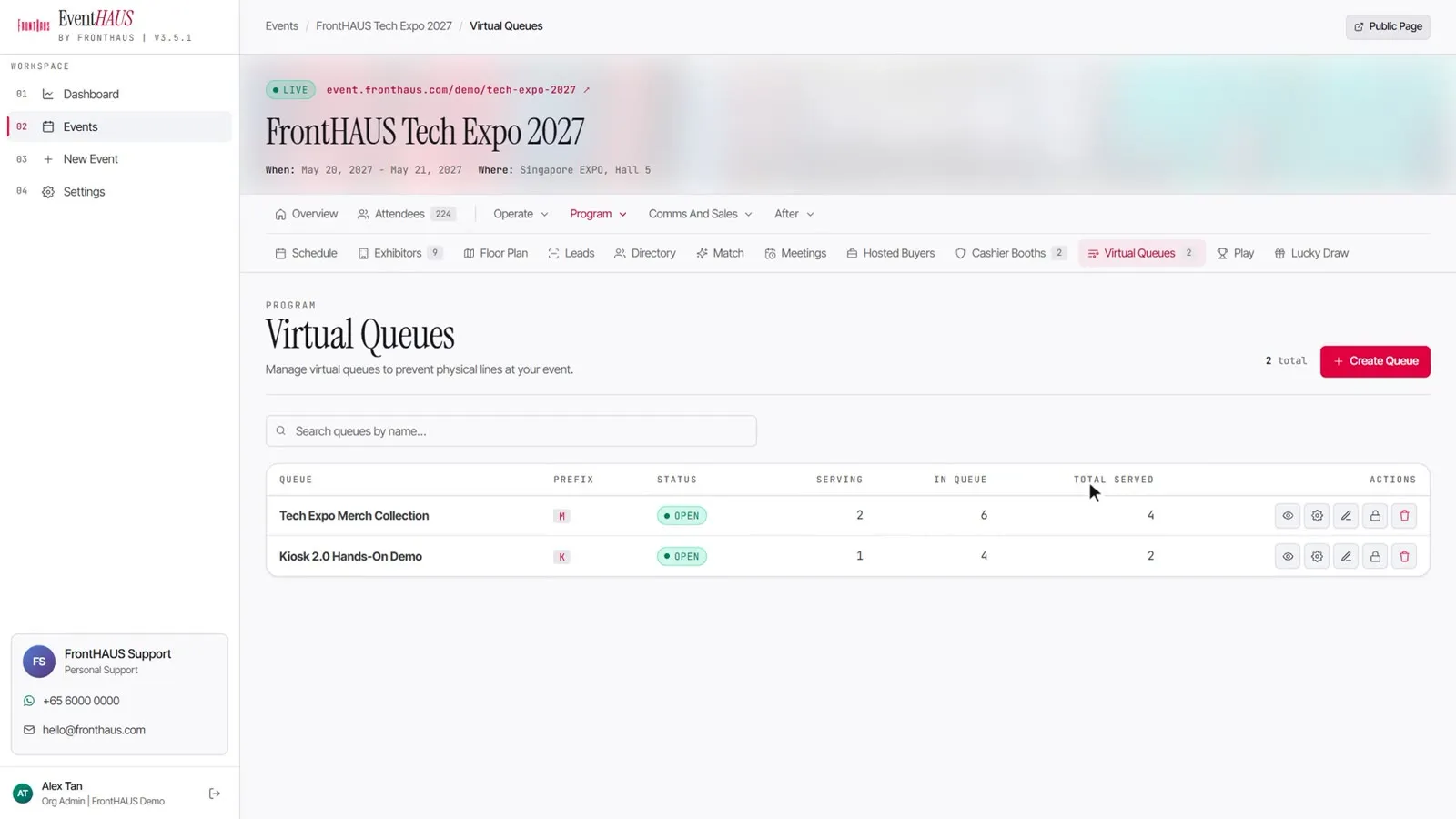
Section titled “Review Your Queues”Open Virtual Queues from the Program menu. Each queue shows its prefix, whether it’s open, how many people are being served, how many are waiting and the total served.
The icons on the right of each row let you view the display, open the manage console, edit settings, close the queue or delete it.
Create A Queue
Section titled “Create A Queue”- Select Create Queue.
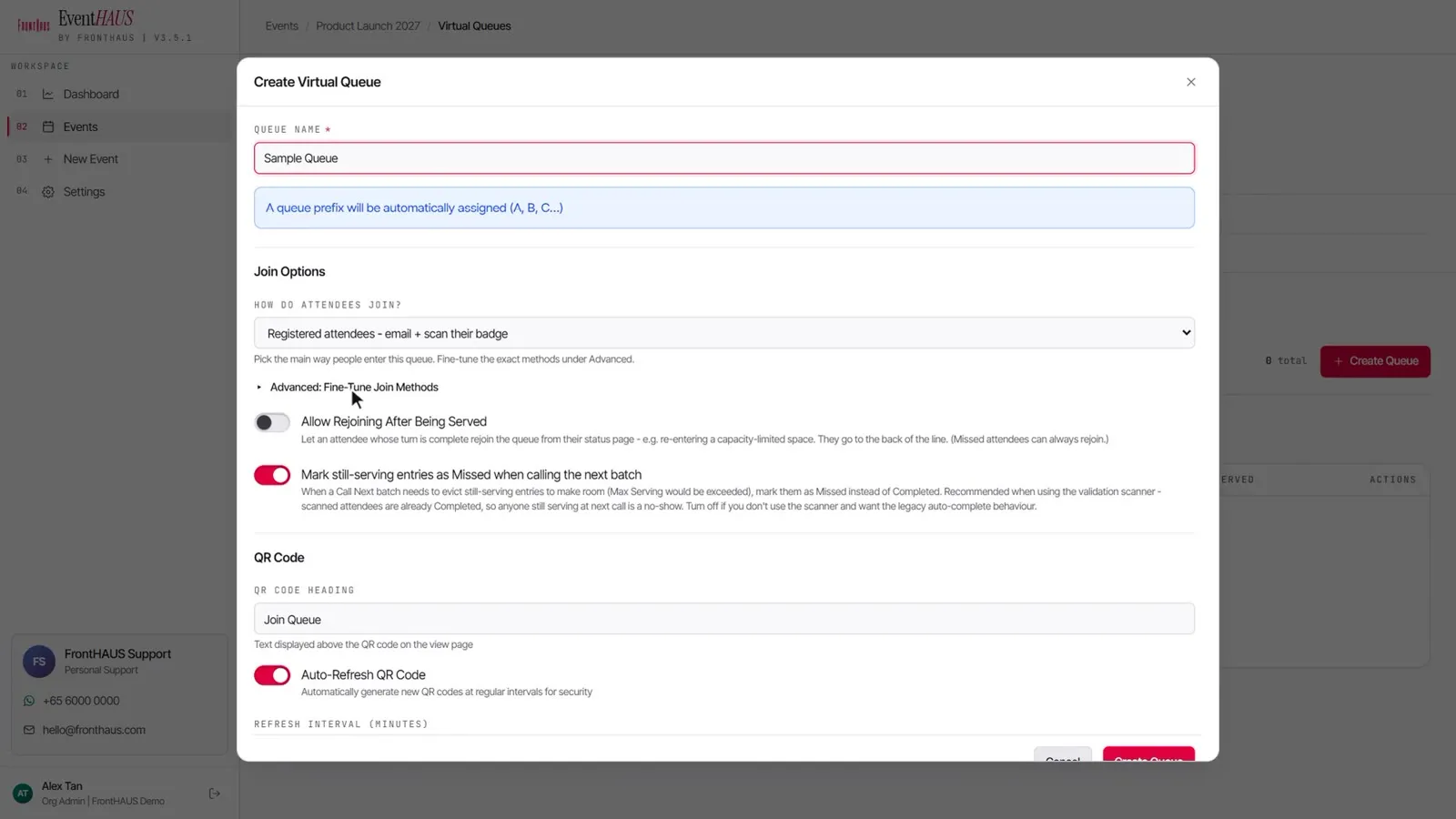
- Type a name, such as a stall or a collection desk. EventHAUS picks the prefix letter for you.
- Under How do attendees join?, choose the main way people enter. You can pick phone number, for walk-ups with no registration, or registered attendees joining with their email or by scanning their badge. Open Advanced: Fine-Tune Join Methods if you want more control.
- Set the rules. Allow Rejoining After Being Served sends a finished guest back to the end of the line. Mark still-serving entries as Missed when calling the next batch marks anyone still being served as missed, instead of completed, whenever you call the next guest.
- Set the QR code. Give it a QR Code Heading, and switch on Auto-Refresh QR Code so it changes every few minutes. That way an old photo of the code stops working.
- Turn on Show Wait Time to give guests an estimate. You can send updates by text message or WhatsApp, and offer free Telegram updates as well.
- Choose the theme. Add a banner and a background picture, pick your colours and a font, so the board looks like your event.
- Select Create Queue. The queue appears in your list.
Run A Queue
Section titled “Run A Queue”Select the gear icon on a queue to open the manage console. Along the top you’ll find Open Display, Scanner, Settings, Close and Call Next.
- Set Max Serving to the number of guests served at once.
- Select Call Next to bring in the next guest. Batch calls several together, such as five or ten.
- Watch the four columns: Serving, In Queue, Missed and Completed. Every guest sits in exactly one.
- Mark a guest who is being served as completed with the tick, or as missed with the cross. Made a mistake? Use the arrow in Completed to move them back to Serving.
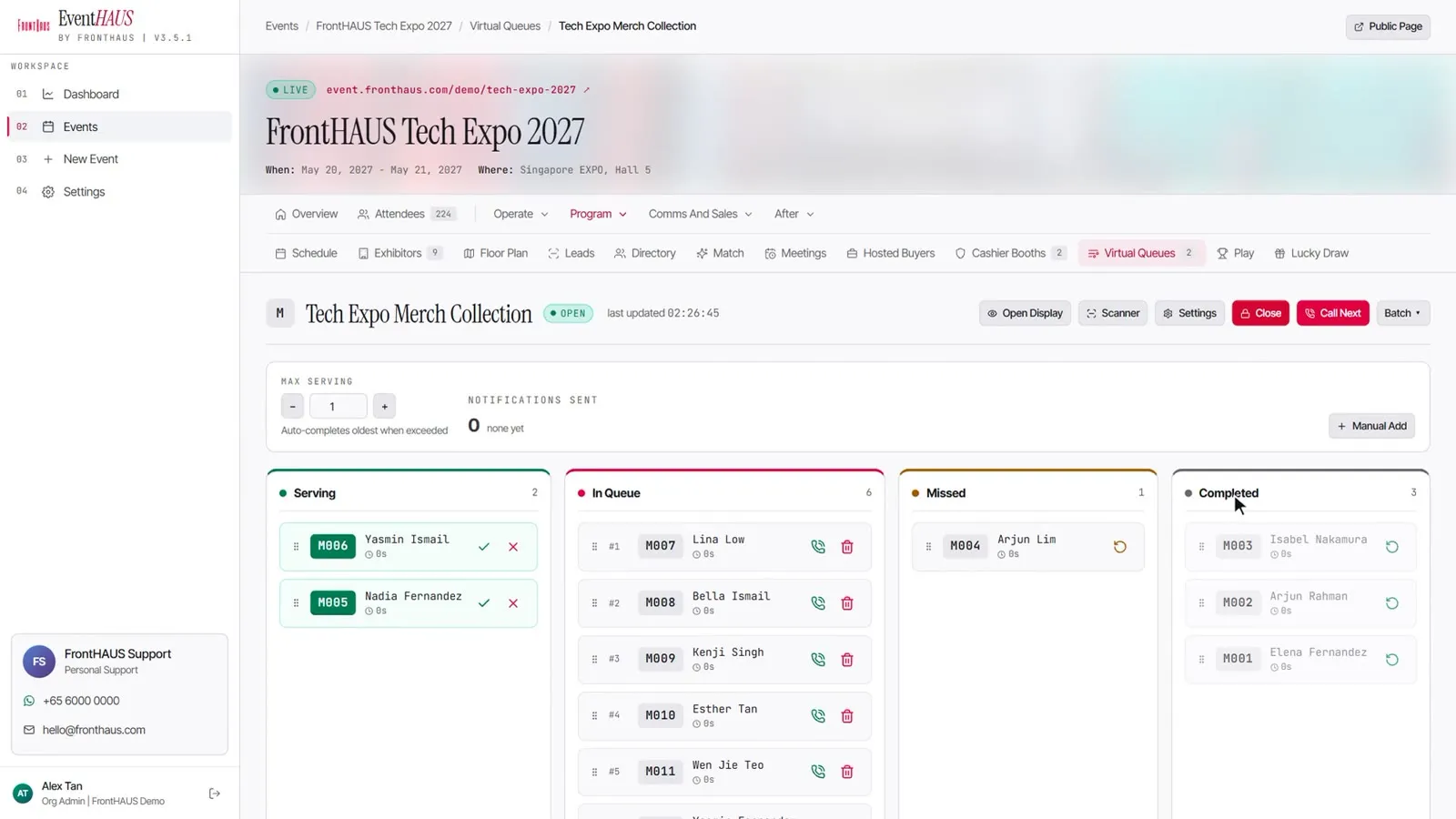
For someone without a phone, select Manual Add, type a name, and they get the next queue number.
The Scanner checks a guest’s QR code when they reach the front. You can also type the code in by hand and select Validate.
What Guests See
Section titled “What Guests See”- The public display board is made for a big screen. It shows the number being served, who’s waiting, and a QR code to join.
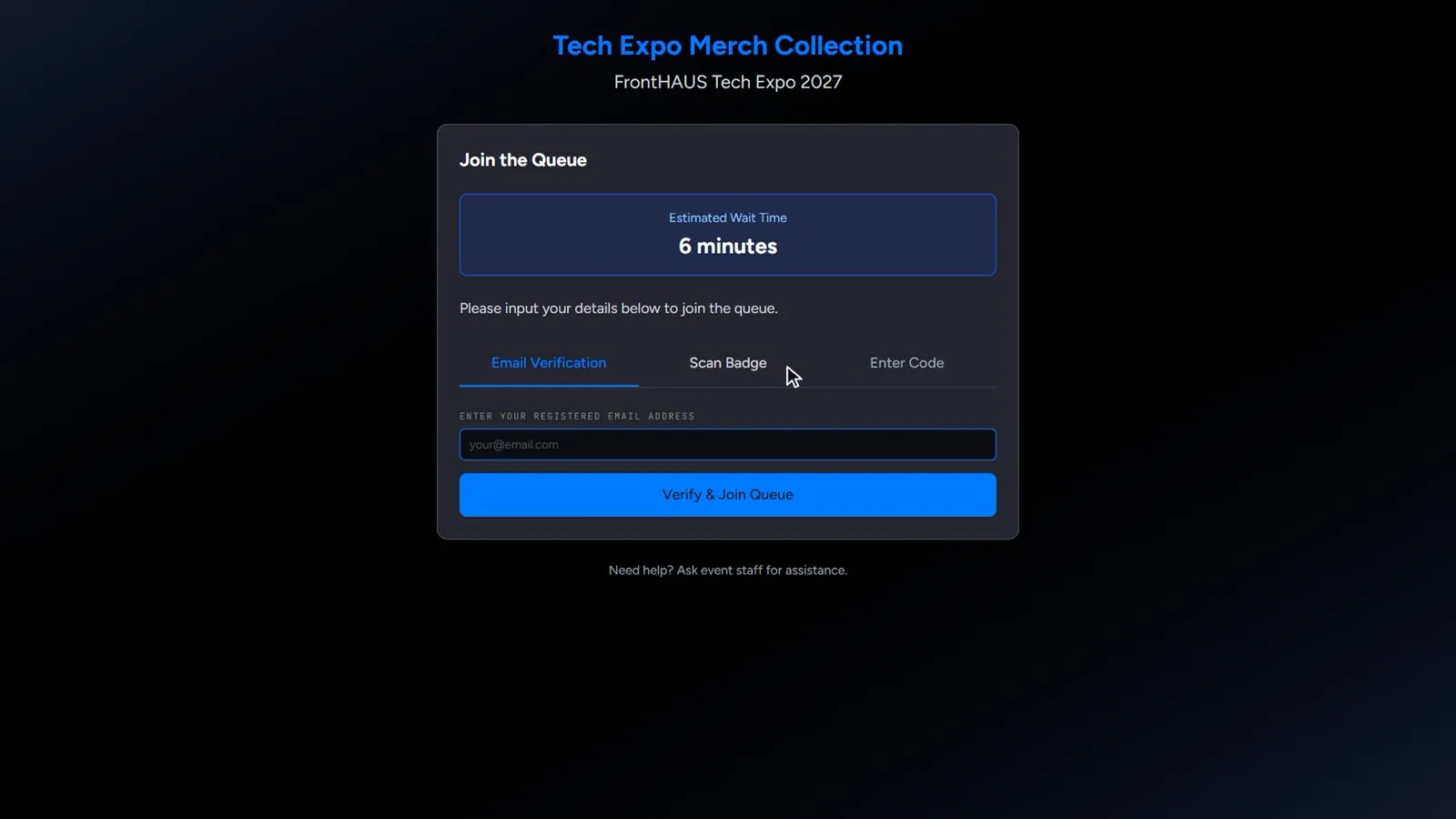
- Guests scan the code and land on the join page. They see the estimated wait, then verify with Email Verification, Scan Badge or Enter Code.
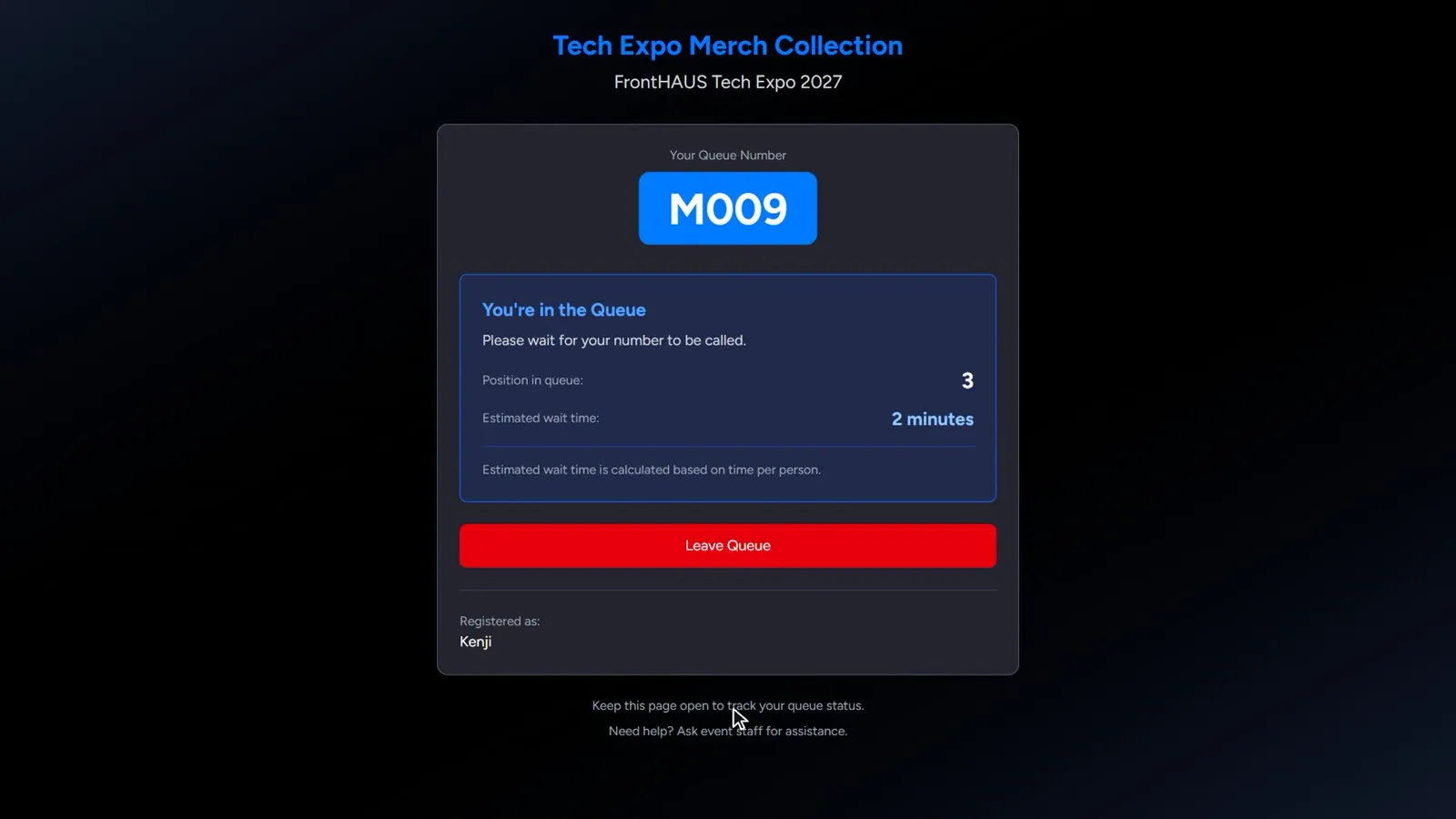
- Once they’re in, they get a status page with their queue number, big and clear, and a note to keep the page open.
- The status page also shows their position and estimated wait. It updates by itself as the line moves, and guests can select Leave Queue from there.
- Cashier Booths And Stored Value: let guests pay from a balance on their pass.
- Exhibitors And The Floor Plan: set up the booths guests queue for.