
Match And Meetings
Three pages help your guests meet each other. Directory holds the profiles people create. Match suggests who should meet whom, based on their offers, needs and interests. Meetings lets guests book time at tables, and gives you the diary to manage.
Before You Start
Section titled “Before You Start”Match needs something to work with, so guests need profiles with interests, offers and needs. You manage all three pages from the Program menu.
Check The Directory
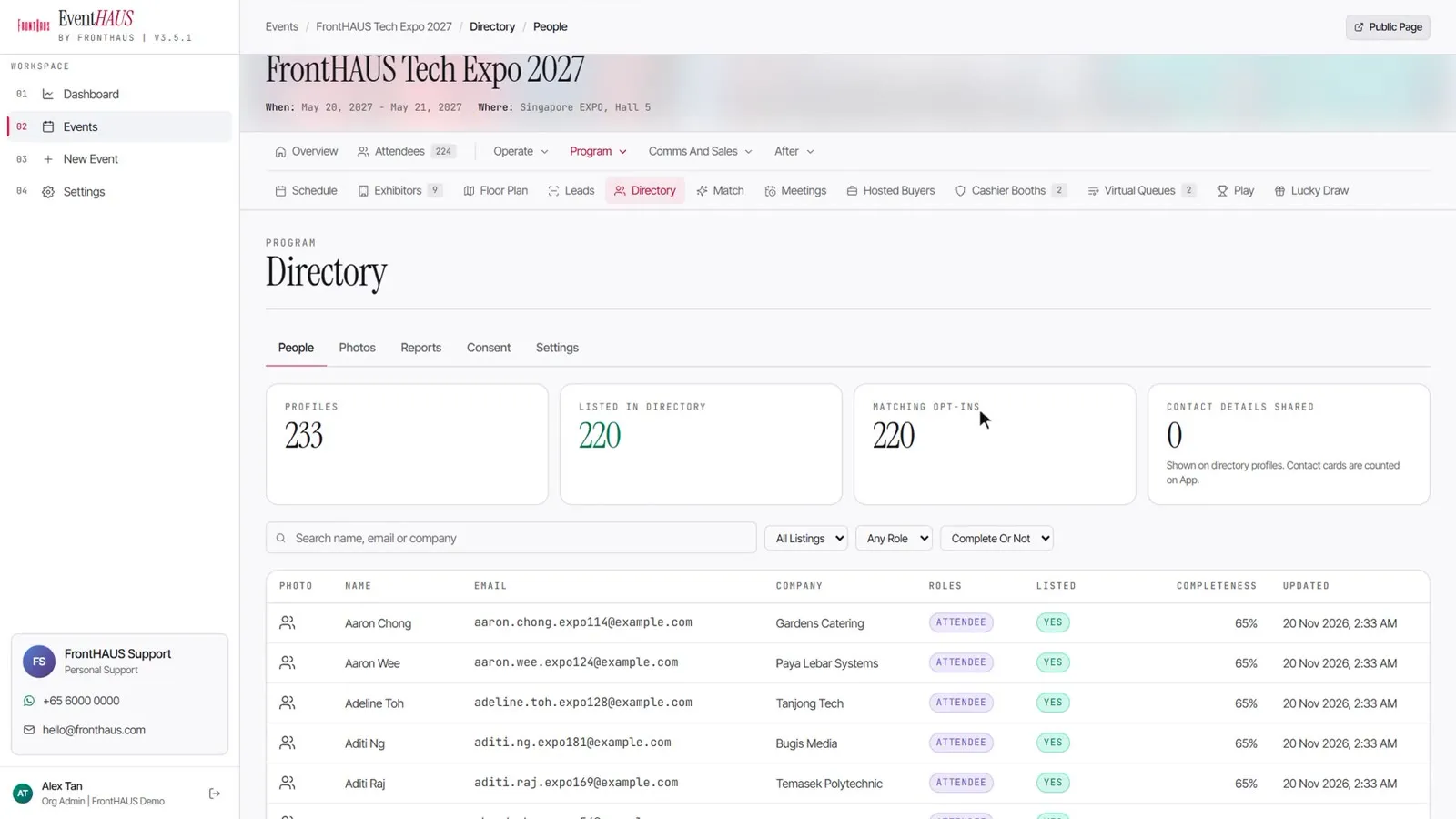
Section titled “Check The Directory”- Open the Program menu and choose Directory.
- Look at the cards at the top. They count Profiles, Listed In Directory and Matching Opt-Ins.
- Use the filters to narrow the list by listing, by role, or by how complete a profile is.
- Select a person to open their profile. Every field shows who can see it: Everyone, People I Meet or Private.
Further down the profile are the moderation tools. Hide Profile needs a reason, and Lock Photo Uploads stops new photos coming in. Erase Profile is permanent, so take care with it.
Open Settings for Profile Questions. This holds the interest tags and the offer and need categories people choose from. Below it you can cap how many interests, offers and needs a person can pick, and choose which fields a profile needs before it’s listed.
Review Match
Section titled “Review Match”- Open the Program menu and choose Match.
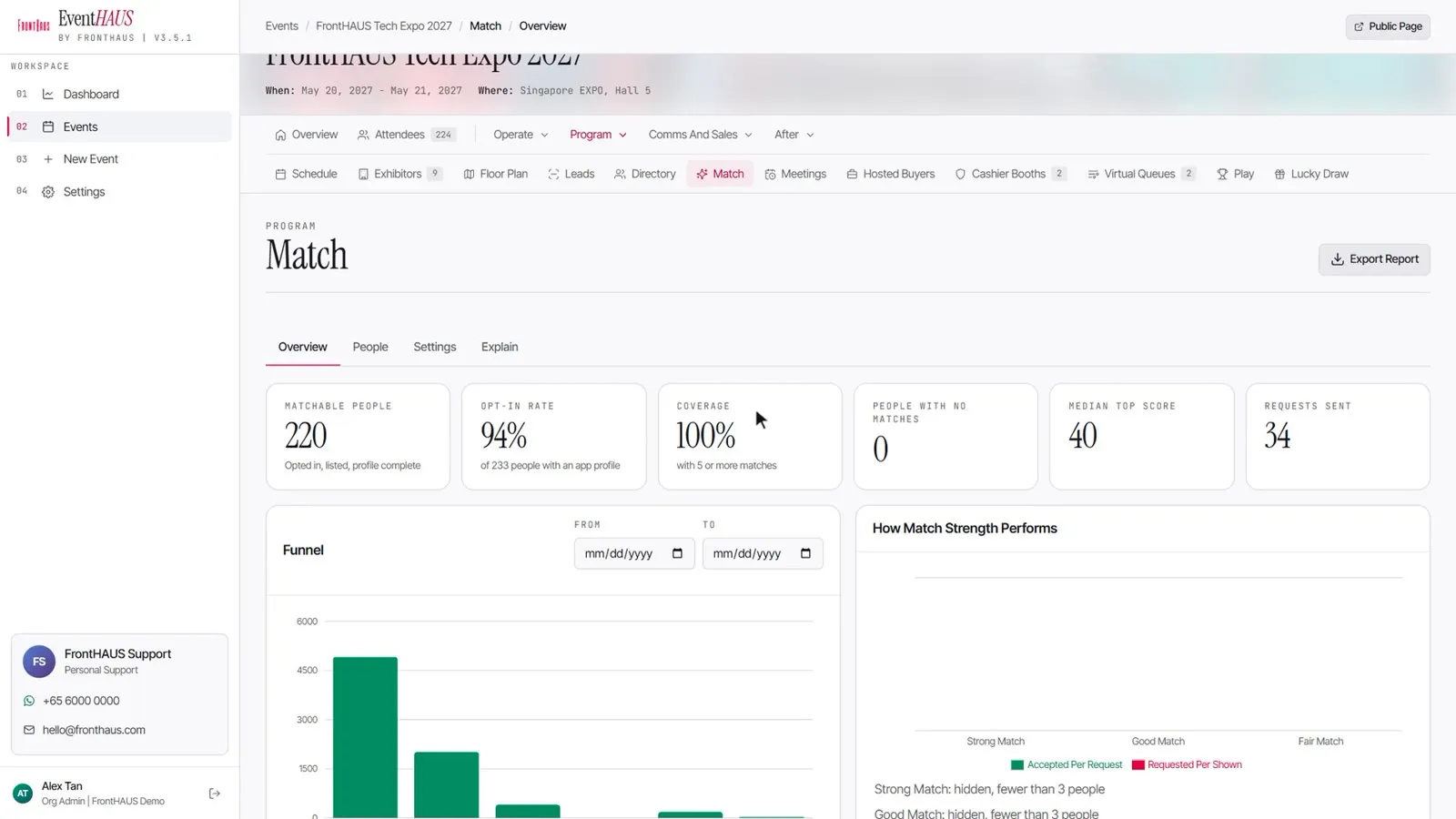
- Look over the overview cards, including Matchable People, Opt-In Rate and Coverage.
- Follow the Funnel from matches shown, to viewed, saved, requested and accepted. Below it, Supply And Demand compares what people offer with what they need.
- Last Run shows when matches were last built. Select Rebuild Matches to recalculate them.
- Open the People tab and select a person to see their top suggestions, each with a score and the reasons they matched.
Configure Matching
Section titled “Configure Matching”Open the Settings tab on the Match page.
- Matching Window sets when matching runs.
- Participant Types, such as Buyer, Exhibitor and Investor, can each carry a boost.
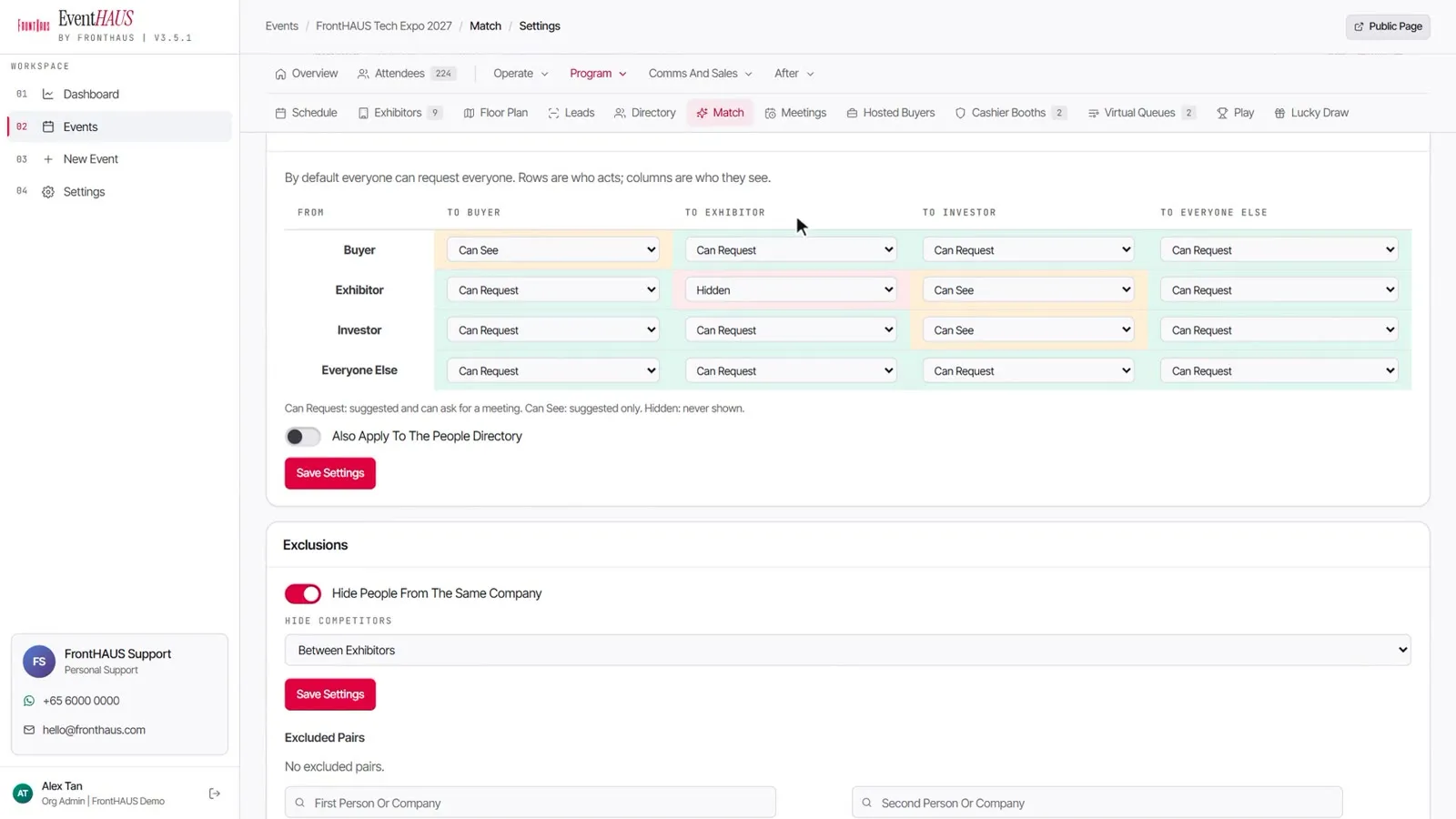
- Who Can Meet Whom is the match matrix. For each pair of types, choose Can Request, Can See or Hidden.
- Exclusions hides people from the same company, and lets you add pairs who should never be matched.
- Matching Questions, such as Industries and Company Types, feed into the score.
Wondering why two people were matched? Open the Explain tab. It compares any two people and shows how they score.
Manage Meetings
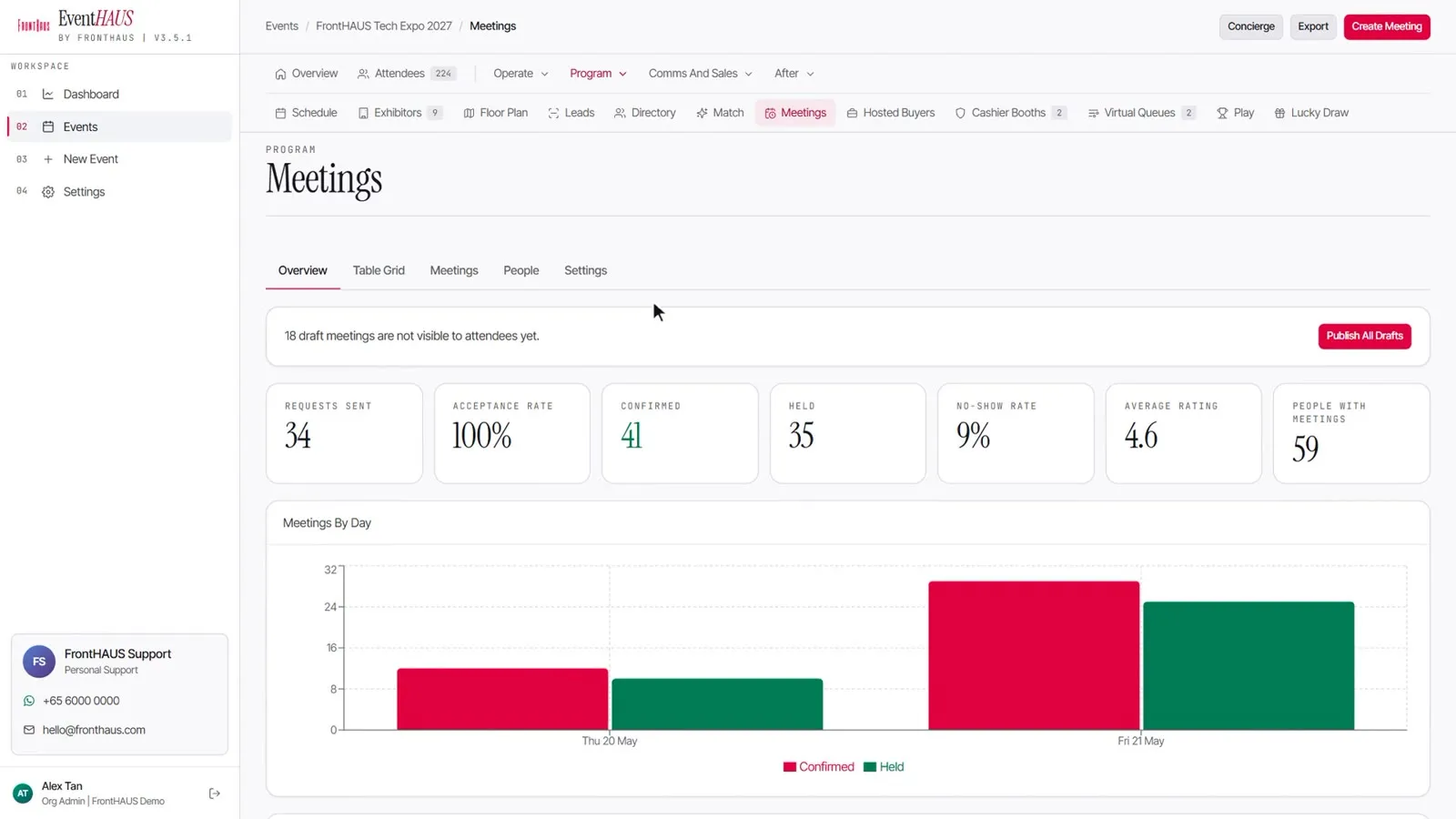
Section titled “Manage Meetings”- Open the Program menu and choose Meetings. The overview counts requests, confirmed and held meetings, no-shows and ratings.
- Open Table Grid to see every table by time slot. Drag a meeting to a free cell to move it, and both people are told.
- Open the Meetings tab to list each meeting with its status, outcome, source and check-ins. You can filter by status, outcome, day or location.
To book a meeting by hand, select Create Meeting, search for two people, then pick a day and a time. Choose a location and add a topic. Notify Participants emails them.
Under People, you can see each person’s requests and meetings. Set Limits gives one person their own cap, and Pause Requests stops one person from asking.
Set Booking Rules
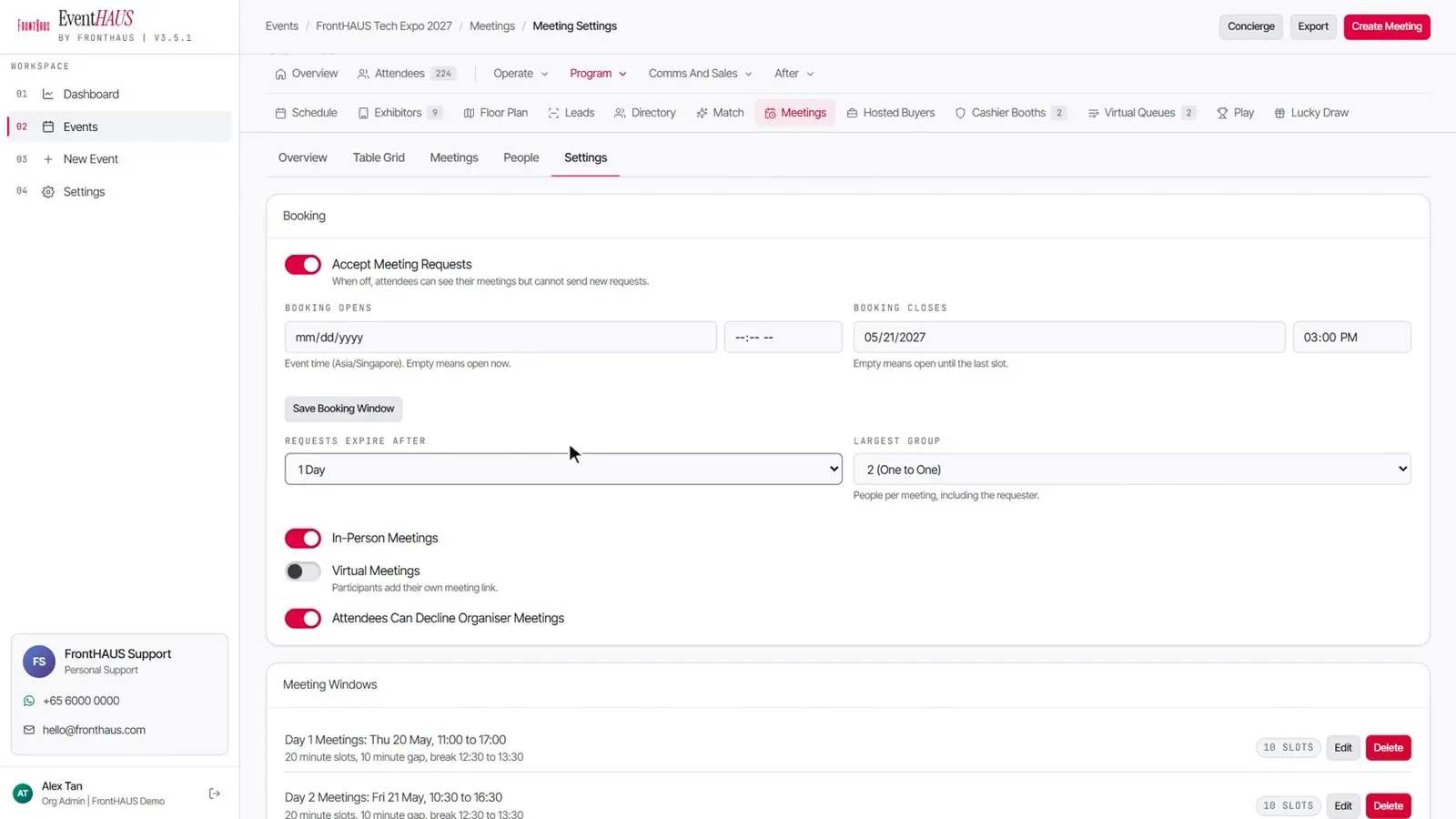
Section titled “Set Booking Rules”Open Settings on the Meetings page.
- Turn requests on or off, set when booking opens and closes, and choose how long a request stays open.
- Meeting Windows set when meetings can happen, with slot length, gaps and breaks. Locations are your tables and rooms.
- Limits cap each person. You can give a ticket type a higher cap than everyone else.
- Check-In and Outcomes sets when check-in opens, when a meeting counts as held, and what happens with no-shows.
What Guests See
Section titled “What Guests See”In the attendee app, the home page shows Top Matches.
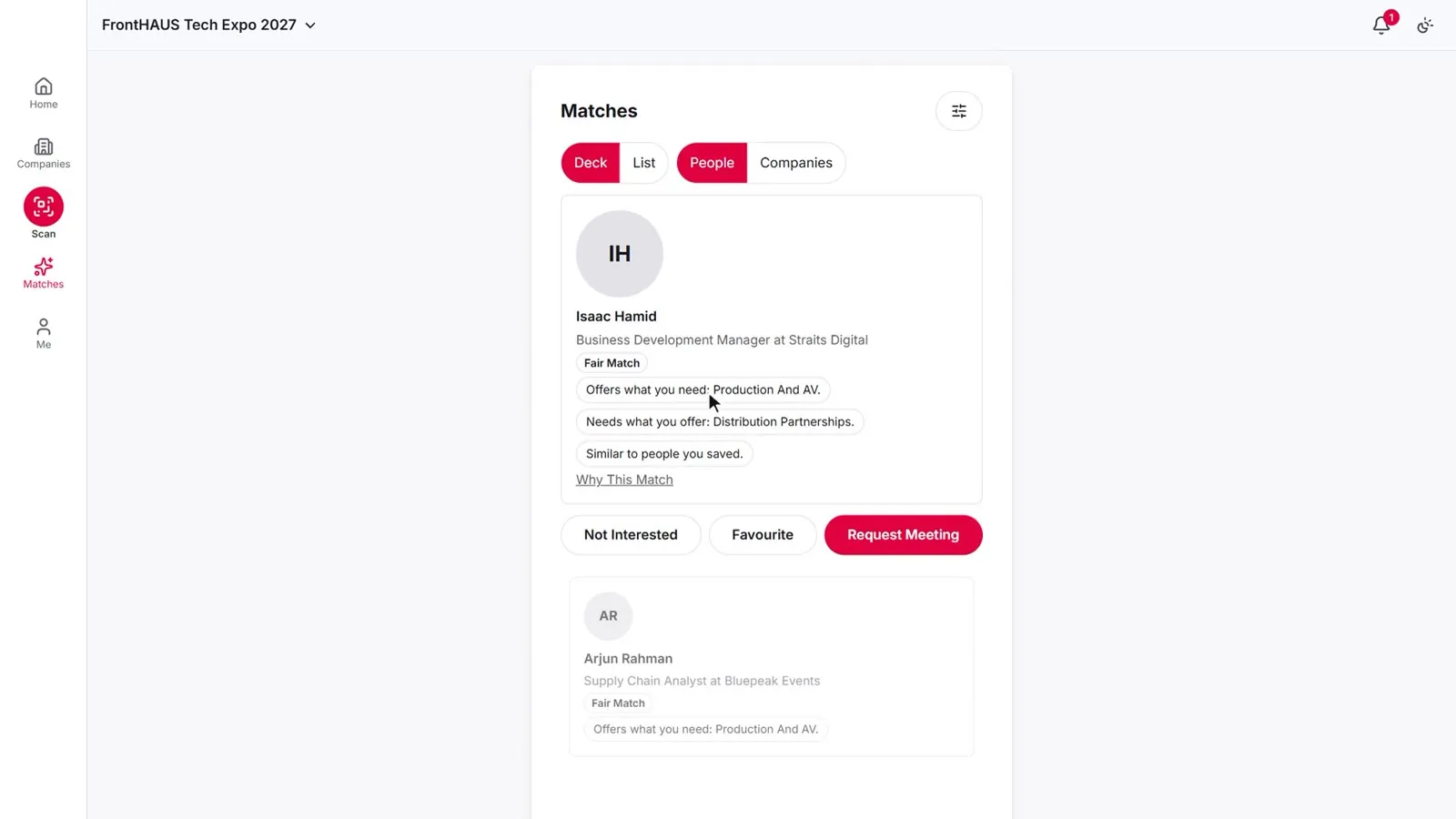
- The Matches tab shows suggested people as cards, each with a match label and the reasons, such as offers what you need.
- Why This Match opens the score breakdown.
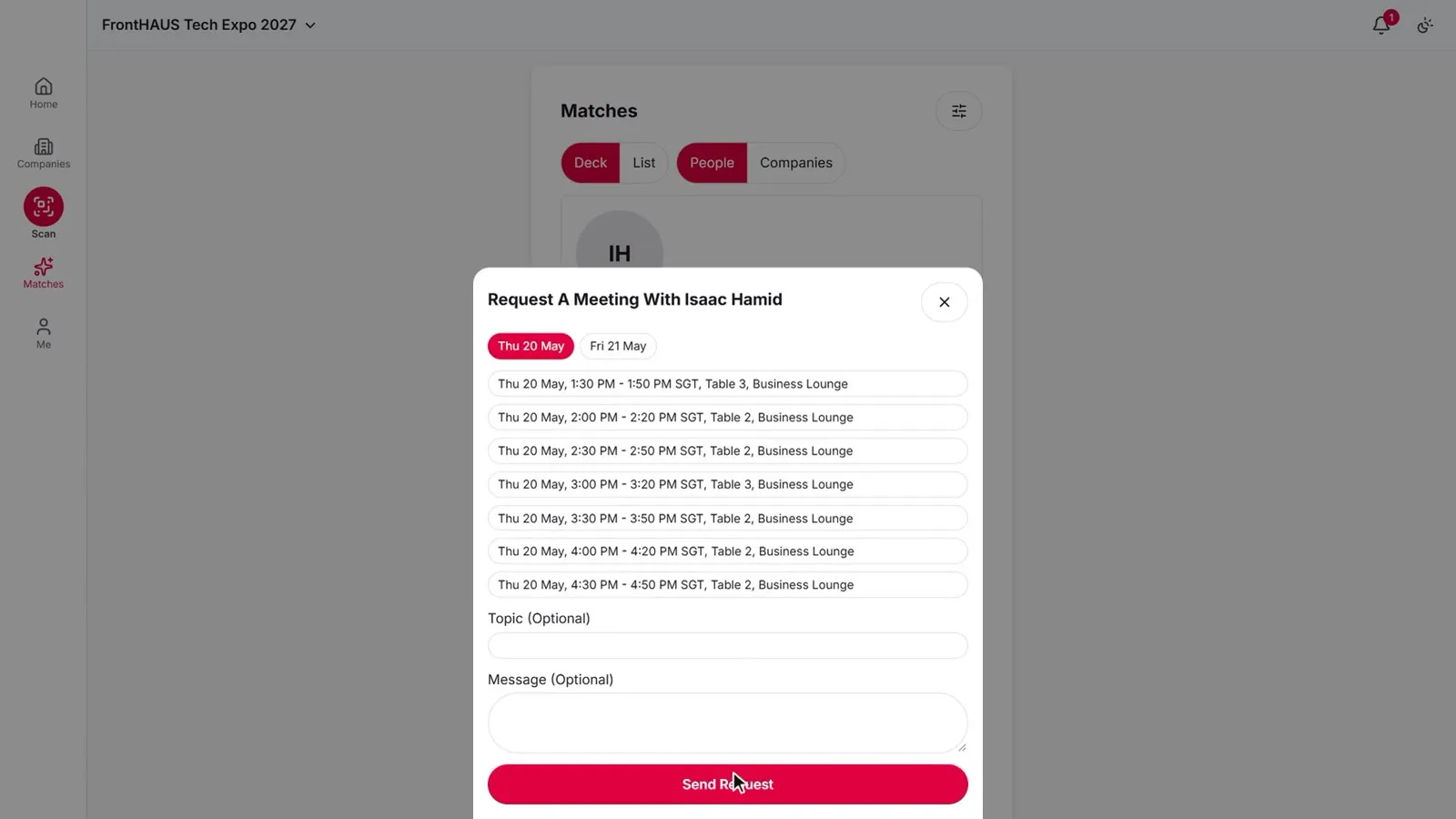
- Request Meeting lists the free slots at the tables. The guest picks one, adds a topic and sends the request.
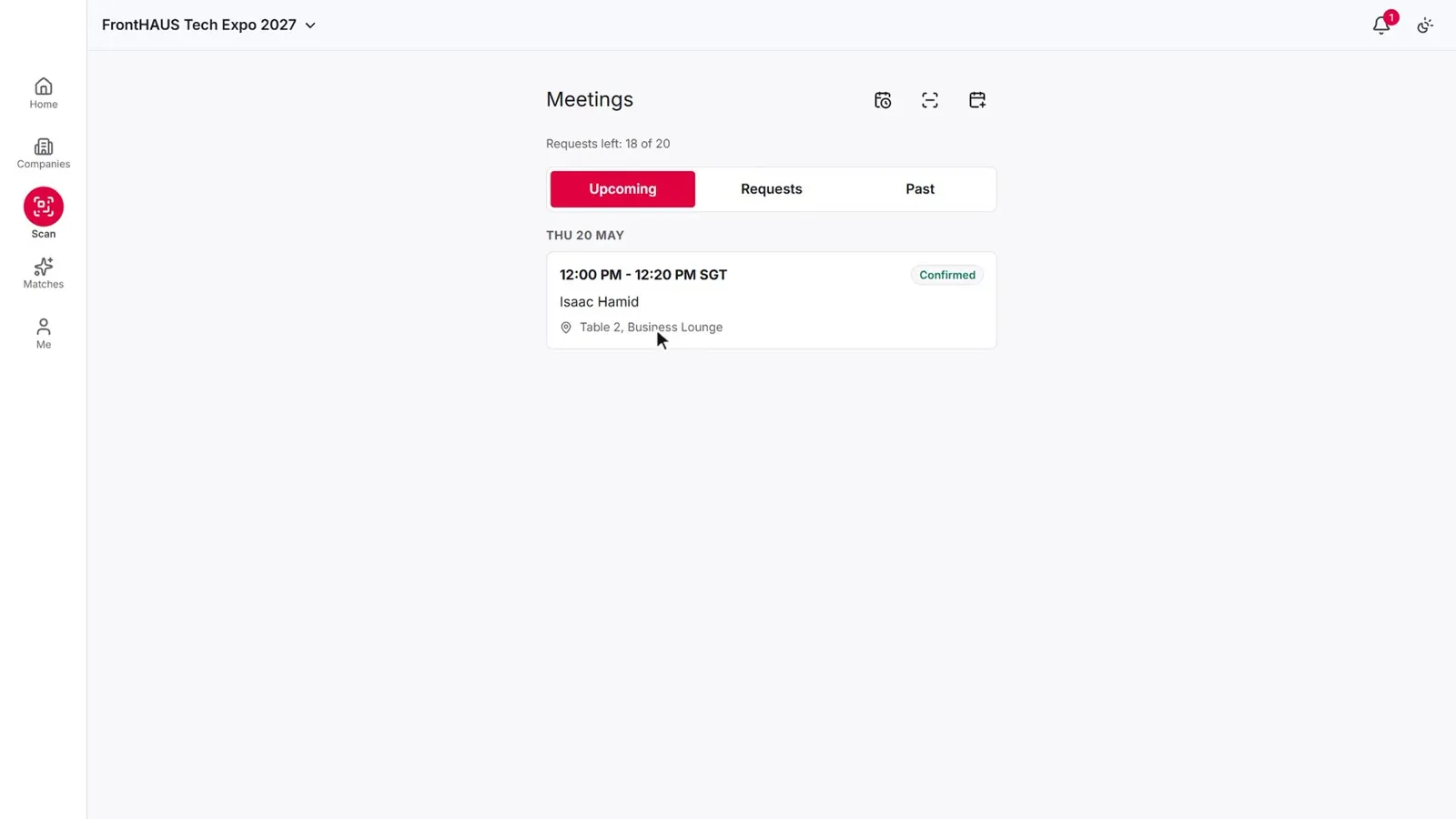
- My Meetings holds everything that’s booked, with the time and the table.
- The Requests tab shows requests the guest has sent. They can withdraw one while it’s still waiting for an answer.
- Hosted Buyers: arrange meeting diaries for invited buyers.
- Lead Scanning: collect leads at exhibitor booths.