Lucky Draw
A lucky draw picks winners from your guests, and keeps a record that proves the entry list was locked before anyone was chosen. You decide who’s eligible, seal the pool, draw, then export the evidence.
Before You Start
Section titled “Before You Start”Publish your event first. If you want to draw from Play entries, set up Play before you start. See Play.
Create A Draw
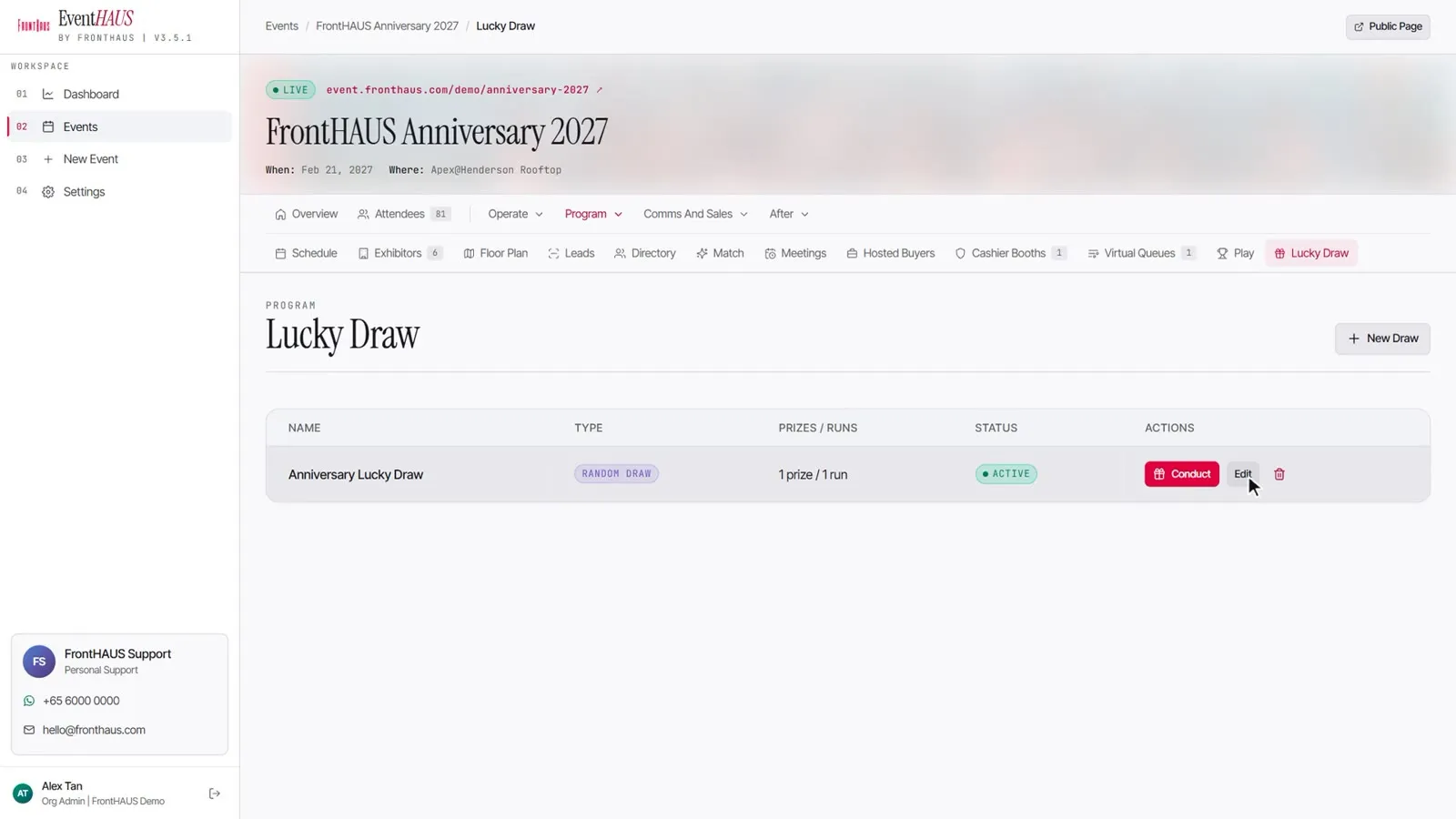
Section titled “Create A Draw”- From the Program menu, select Lucky Draw. Every draw is a row, showing its type, how many prizes and runs it has, and whether it’s active.
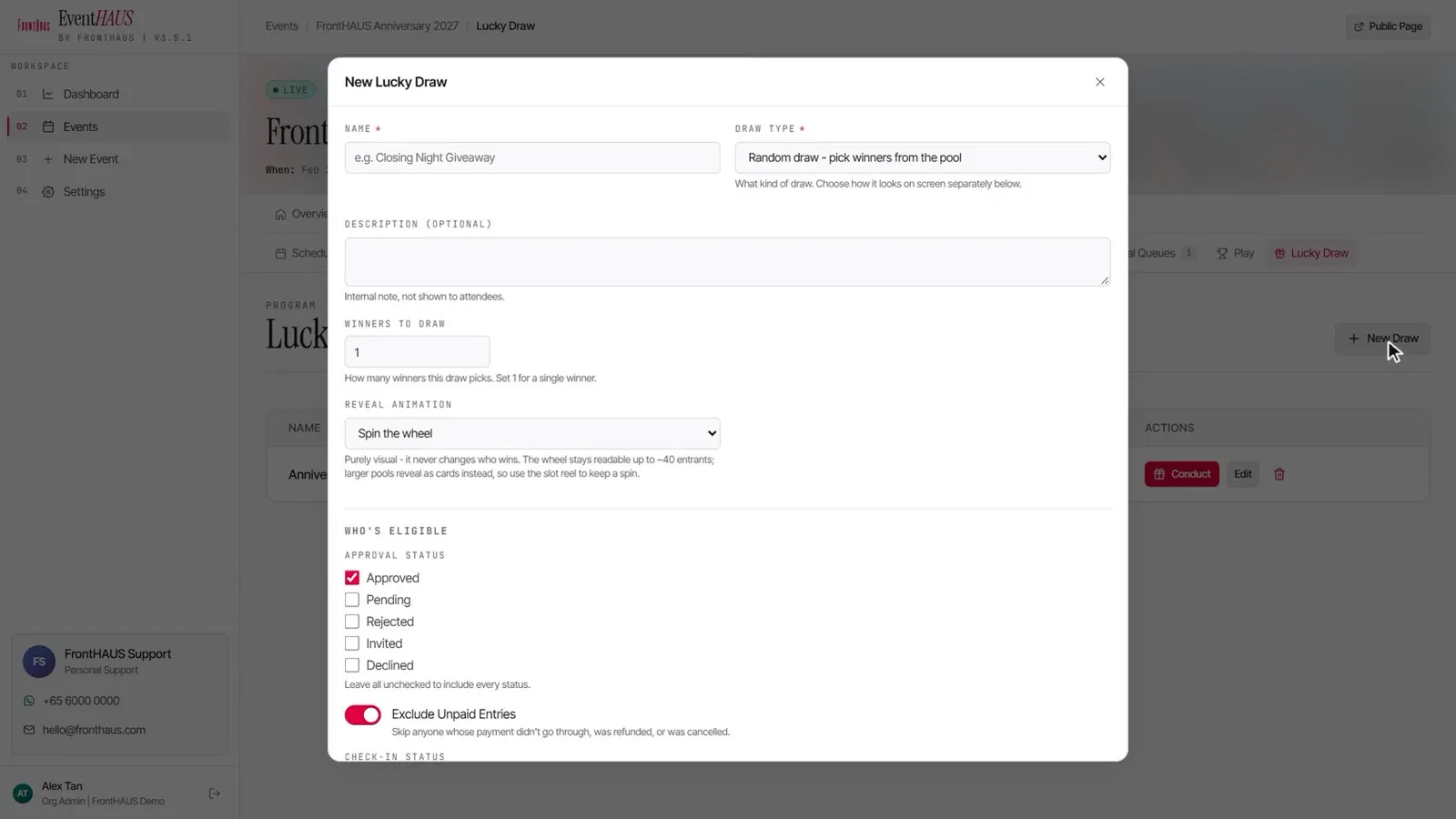
- Select New Draw.
- Type a Name, then choose the Draw Type. Random draw picks winners from a pool. Prize draw assigns prizes to attendees you choose.
- Set Winners to Draw.
- Choose a Reveal Animation: Spin the wheel, Slot reel or Card reveal. It’s purely for show and never changes who wins, so pick whichever suits the room.
Decide Who Is Eligible
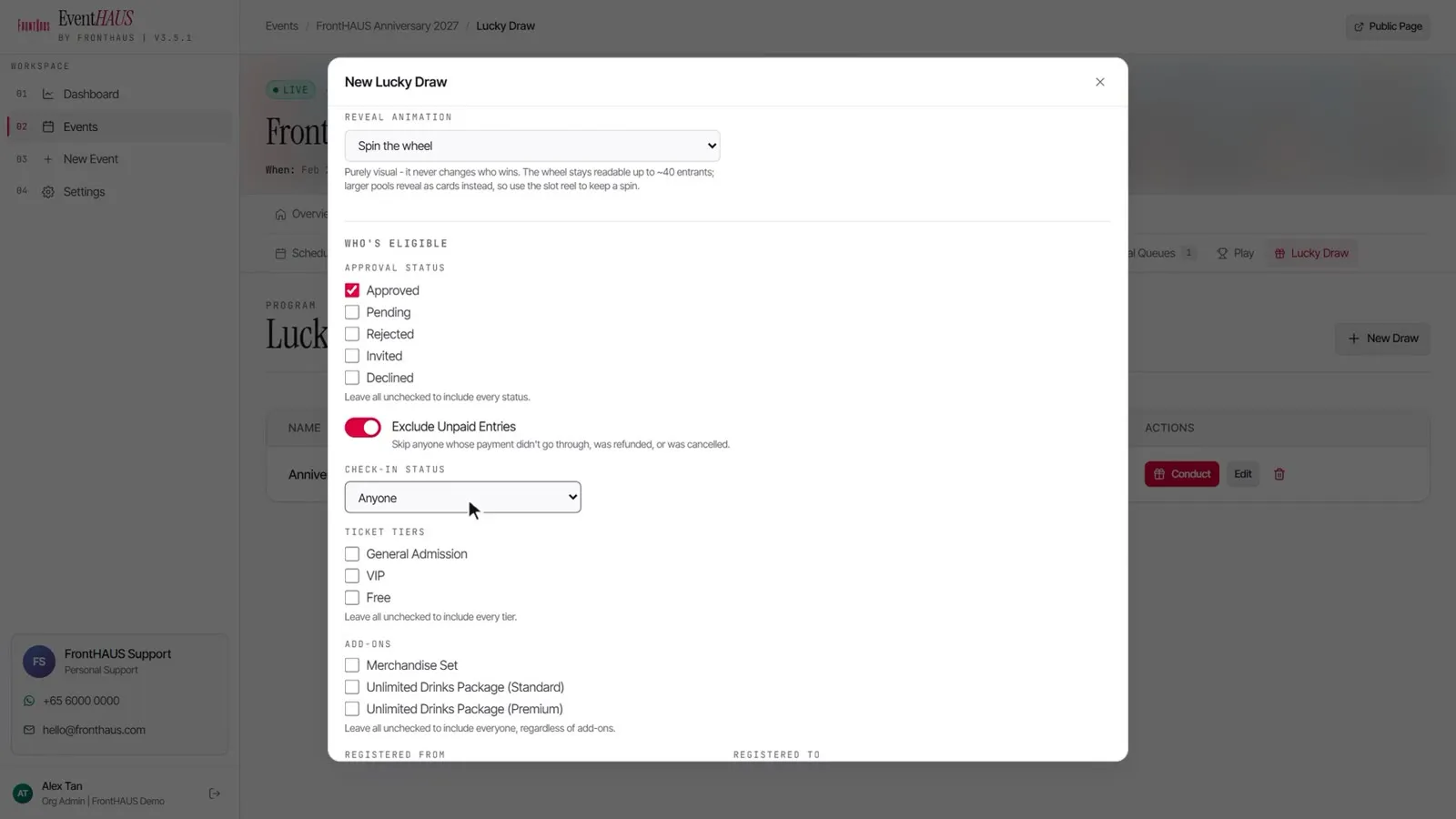
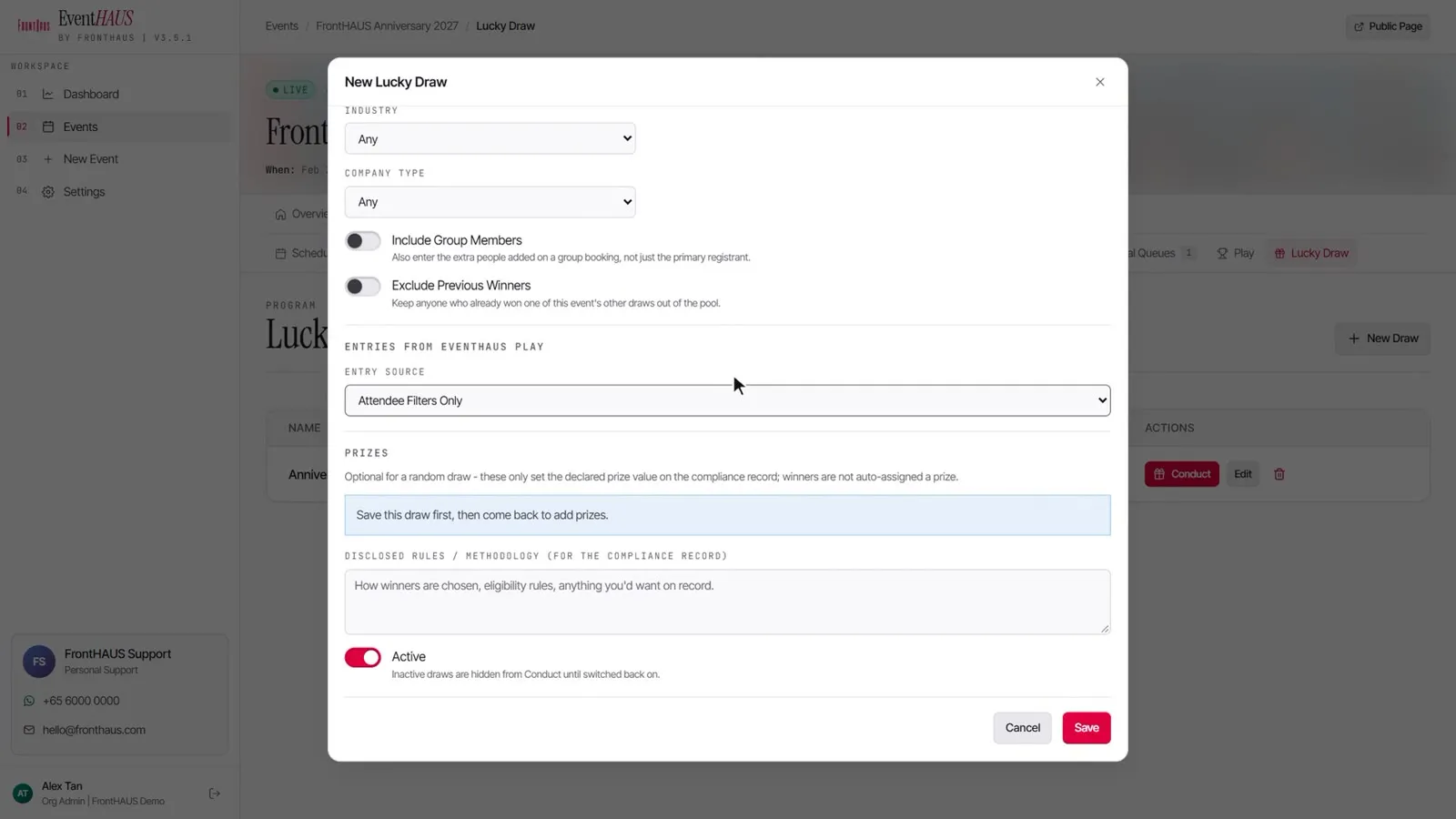
Section titled “Decide Who Is Eligible”Under Who’s Eligible, set the rules that decide who goes into the pool: approval status, Exclude Unpaid Entries, check-in status, ticket tiers and add-ons. Leave a group of boxes all unchecked and everyone in that group is included. If you only want to draw from the guests who actually showed up, set the check-in status to Checked in only.
To pull entries from Play, scroll to Entries From EventHAUS Play and change Entry Source from the default, Attendee Filters Only. The other choices use Play points or challenges as the entries.
Add your Disclosed Rules / Methodology for the compliance record, then select Save.
Add Prizes
Section titled “Add Prizes”Save the draw first, then open it again to add prizes. Each prize has a name, a quantity, a value and an optional image.
Conduct The Draw
Section titled “Conduct The Draw”On the list, select Conduct. At the top you’ll see the run, with its pool size, status, winners drawn and total prize value. Select New run to start a fresh run.
- In step 1, select Snapshot Participants. This freezes exactly who is eligible right now, so nobody can be added or removed without it showing.
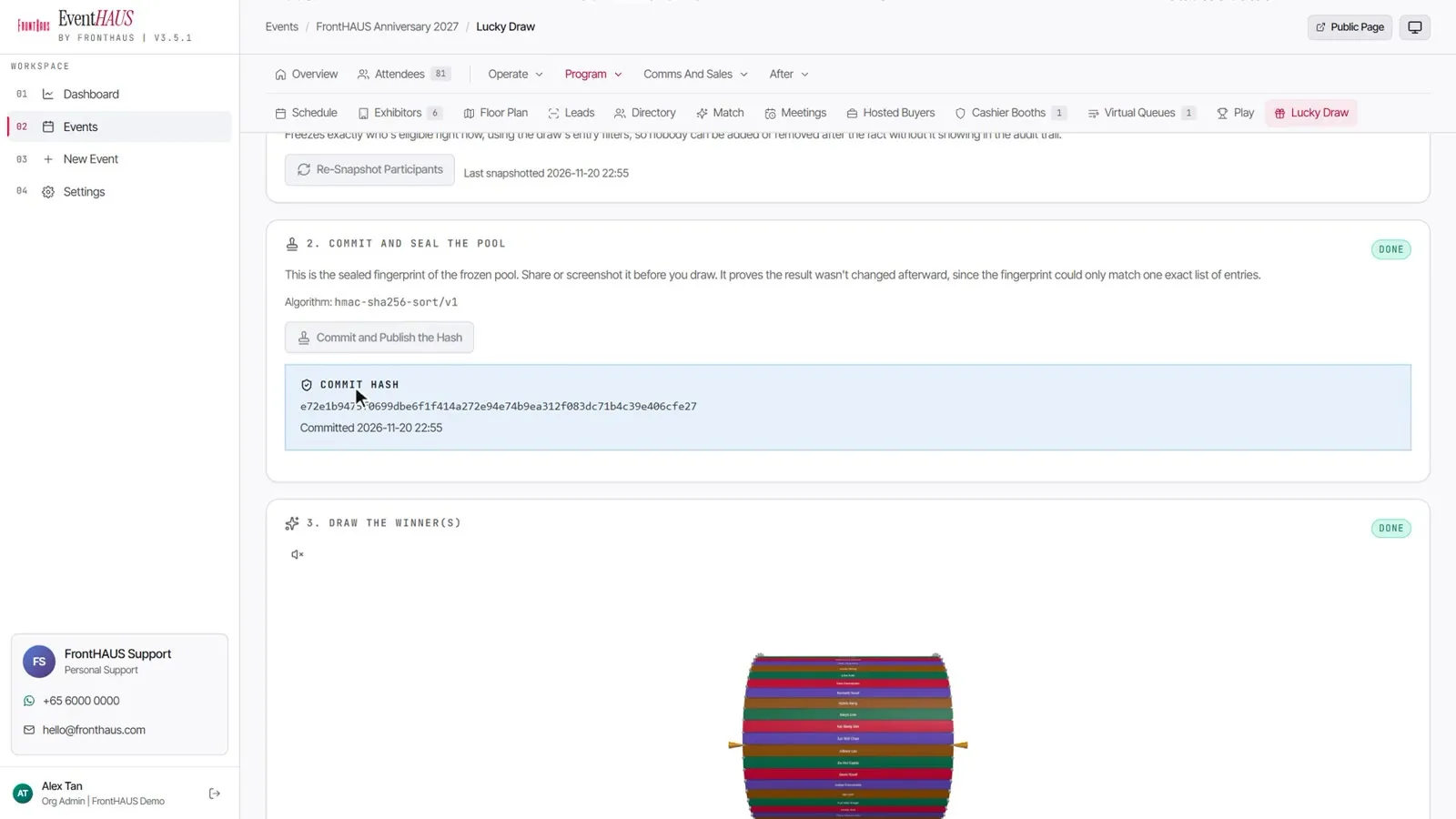
- In step 2, Commit and seal the pool: select Commit and Publish the Hash. The commit hash is a fingerprint of that exact entry list. Share it before you draw, because it can only ever match that list.
- In step 3, draw the winners. Step 4 lists them.
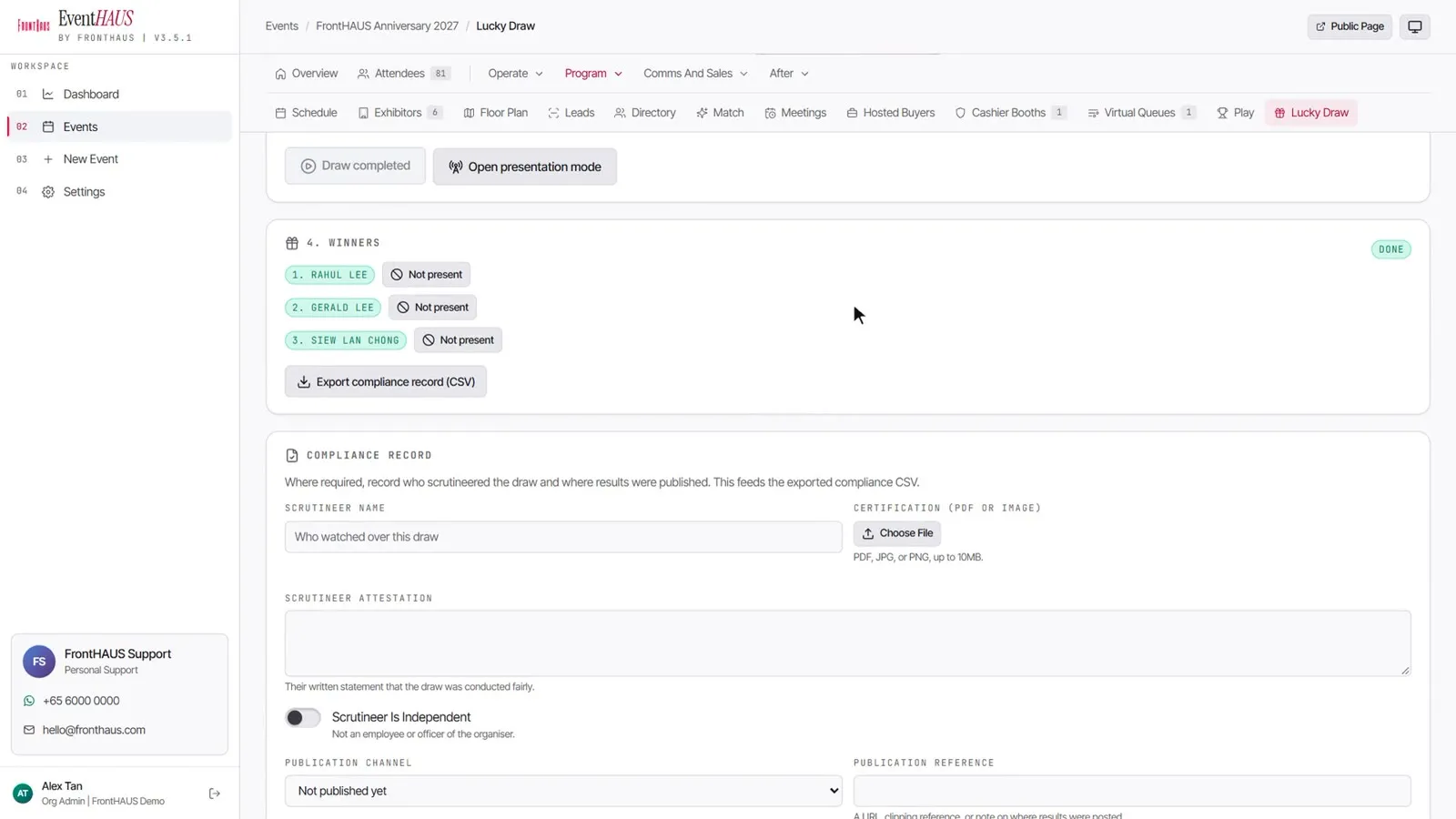
- If a winner isn’t in the room, select Not present beside their name to replace them. The change is recorded.
Sealing is what makes the draw fair. Everyone can see the list was locked first, and any change afterwards would show in the audit trail.
Keep The Record
Section titled “Keep The Record”Select Export compliance record (CSV) to get your audit record. Just below it, the Compliance Record section holds the Scrutineer Name, their attestation, and where the results were published. Fill those in, then select Save Compliance Details.
Show It On The Big Screen
Section titled “Show It On The Big Screen”- Select Open presentation mode. The room sees the draw full screen, with names rolling and winners appearing at the side.
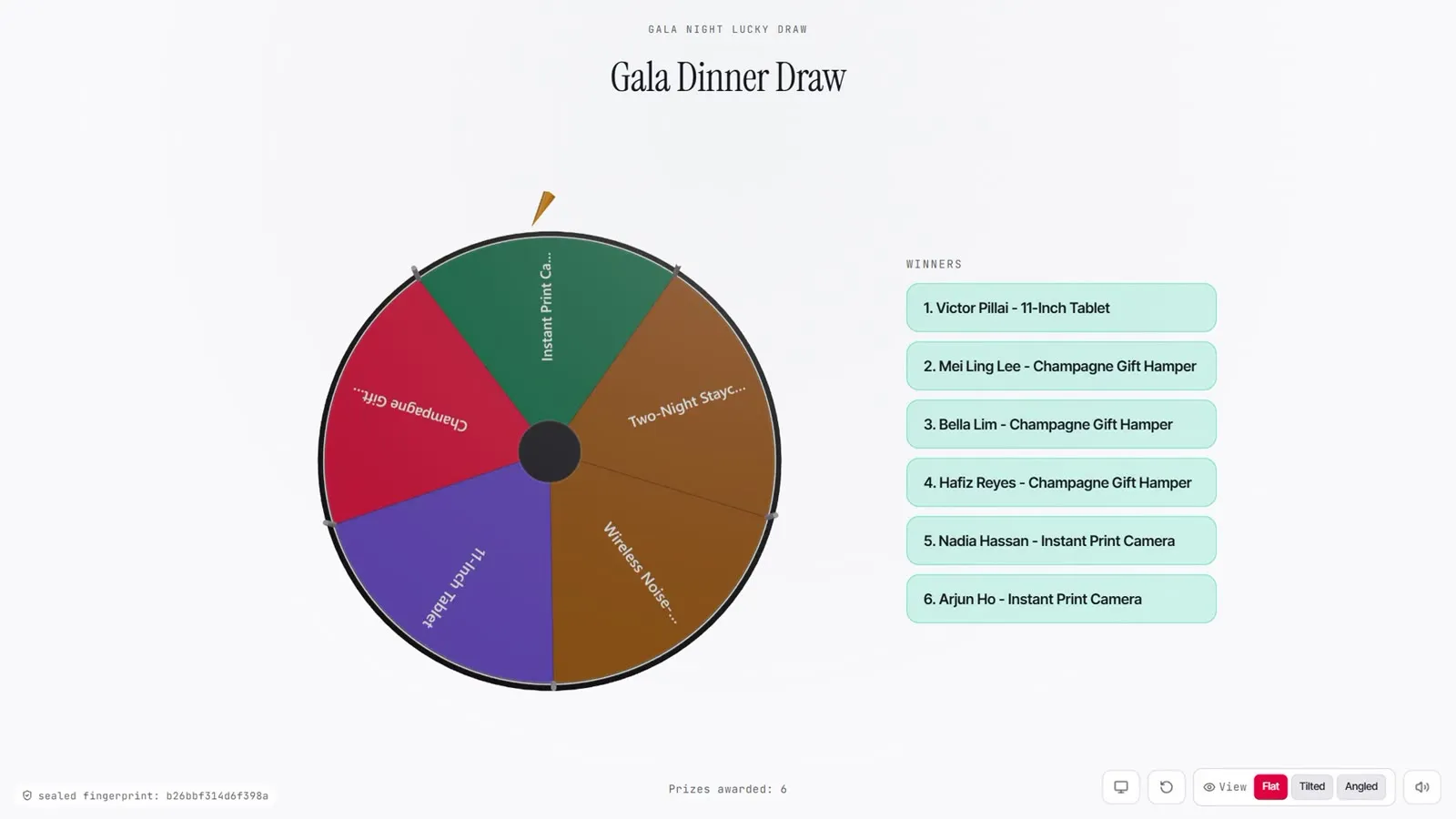
- Use the replay button to show an already drawn result again. It’s safe to press, and the sealed fingerprint stays on screen the whole time.
A prize draw uses a prize wheel instead. It shows the same sealed fingerprint, with each winner listed beside their prize. The View buttons switch the wheel between Flat, Tilted and Angled.
What Guests See
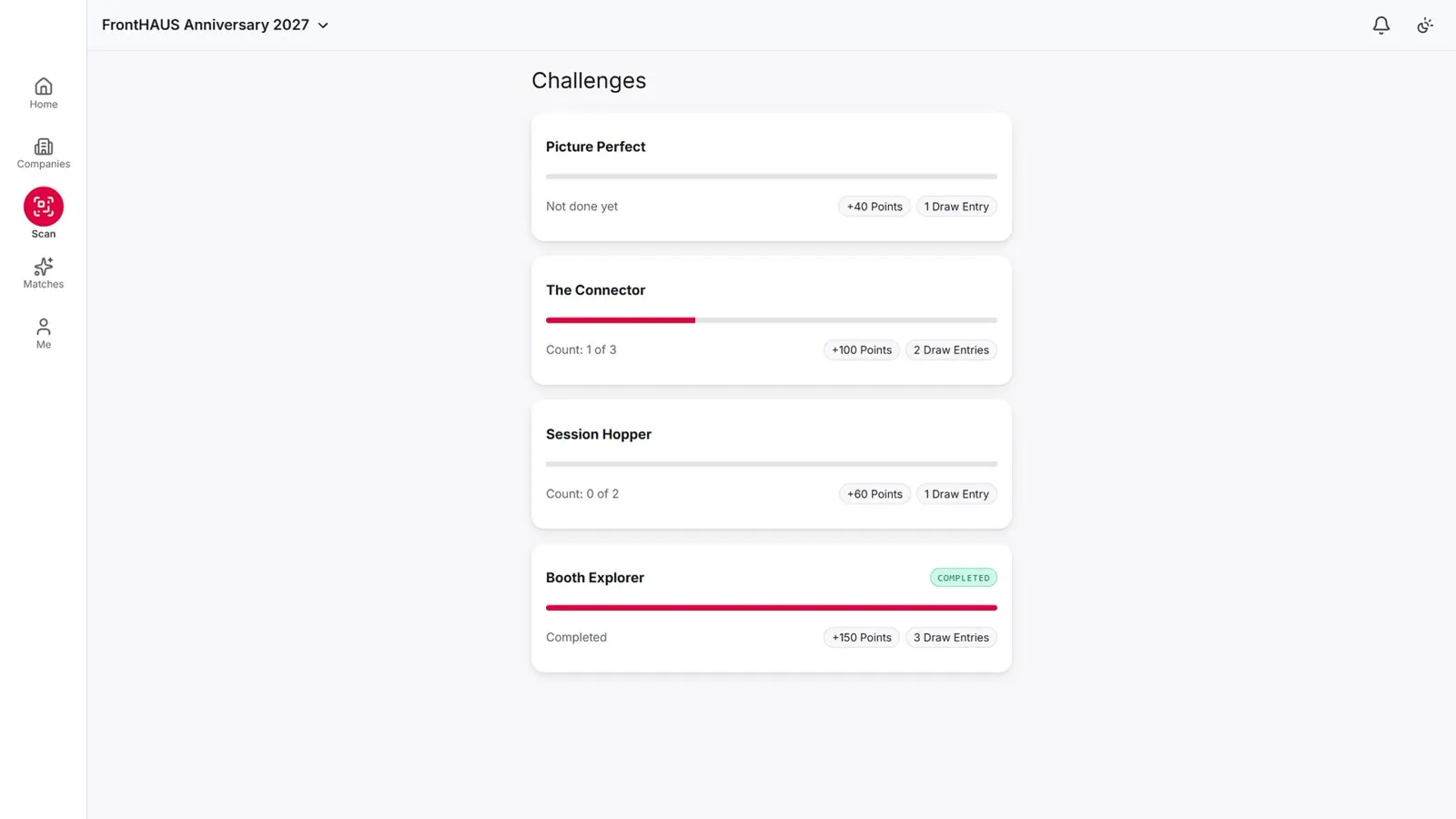
Section titled “What Guests See”Guests earn draw entries through Play. In the attendee app, they open Play, then the full Challenges list.
- Each challenge shows the draw entries it earns, for example 3 Draw Entries for a booth challenge.
- Progress shows as a count, such as Count: 1 of 3, beside the points and draw entries it will earn once it’s finished.
- Rewards sit in the Play area as well. A reward the guest can’t afford yet says Not Enough Points.