
Schedule And Sessions
The Schedule page is where you build your agenda: rooms, sessions, speakers and booking. Guests see the result in the event app.
Before You Start
Section titled “Before You Start”- The event exists. See Your First Event.
Settings And Rooms
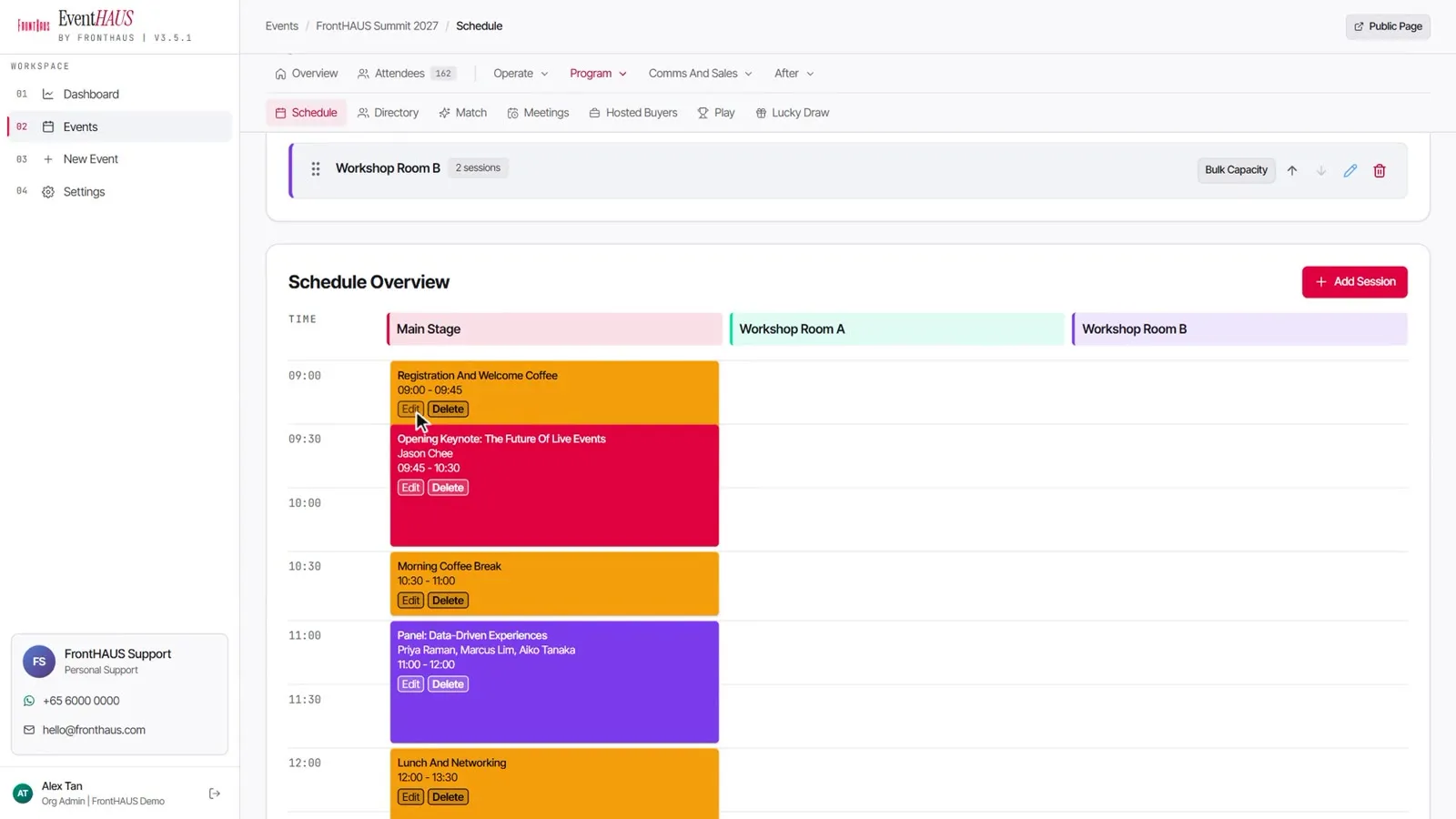
Section titled “Settings And Rooms”Open the Program menu and select Schedule. Schedule Settings control whether the schedule shows on your landing page and when the grid starts and ends. Below those are your rooms, and Bulk Capacity sets seats for all of them at once. The Schedule Overview grid has rooms across the top and time down the side.
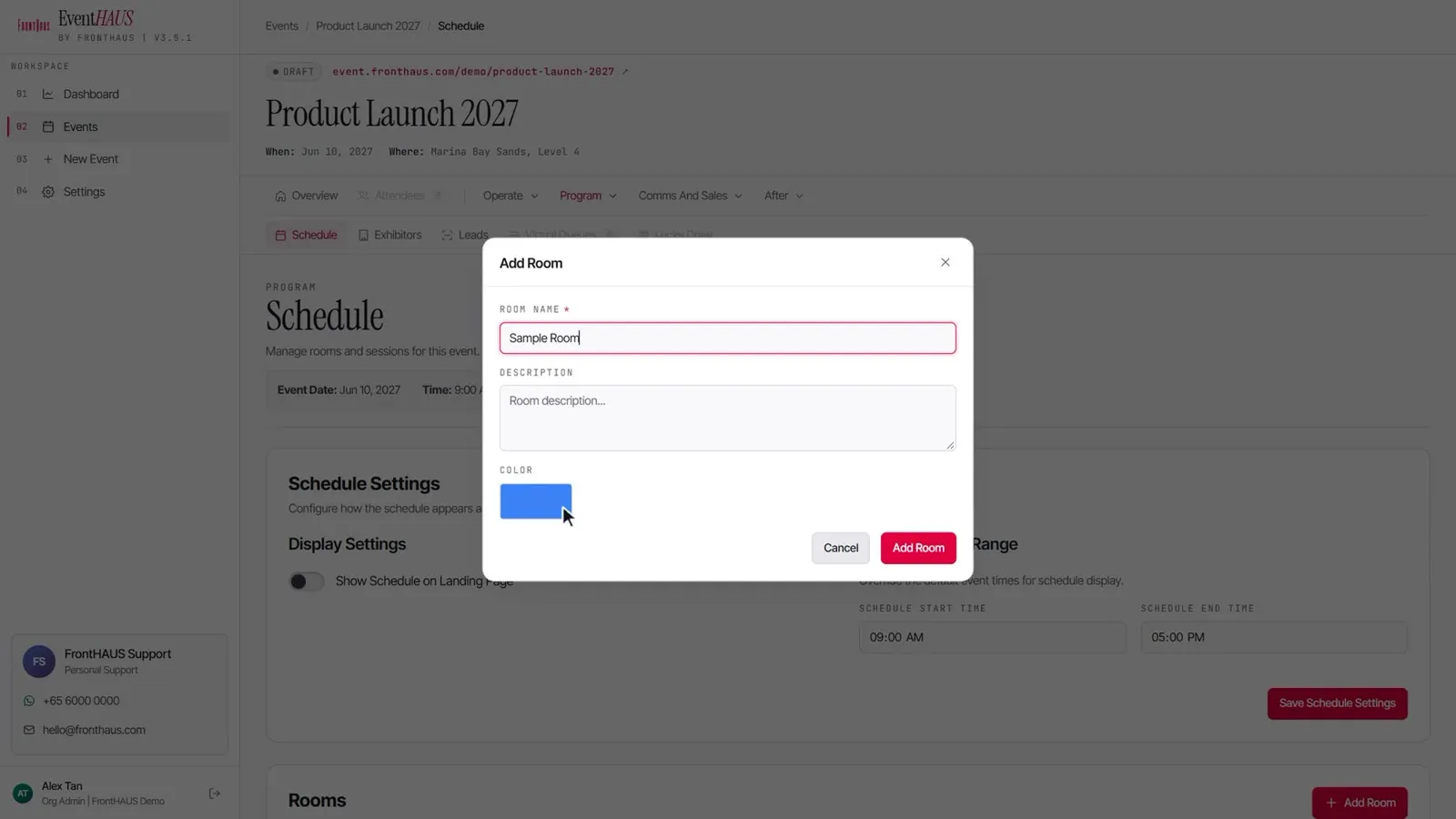
To add a room, select Add Room, give it a Room Name, and add a Description and a Color if you’d like to.
Add A Session
Section titled “Add A Session”- Select Add Session.
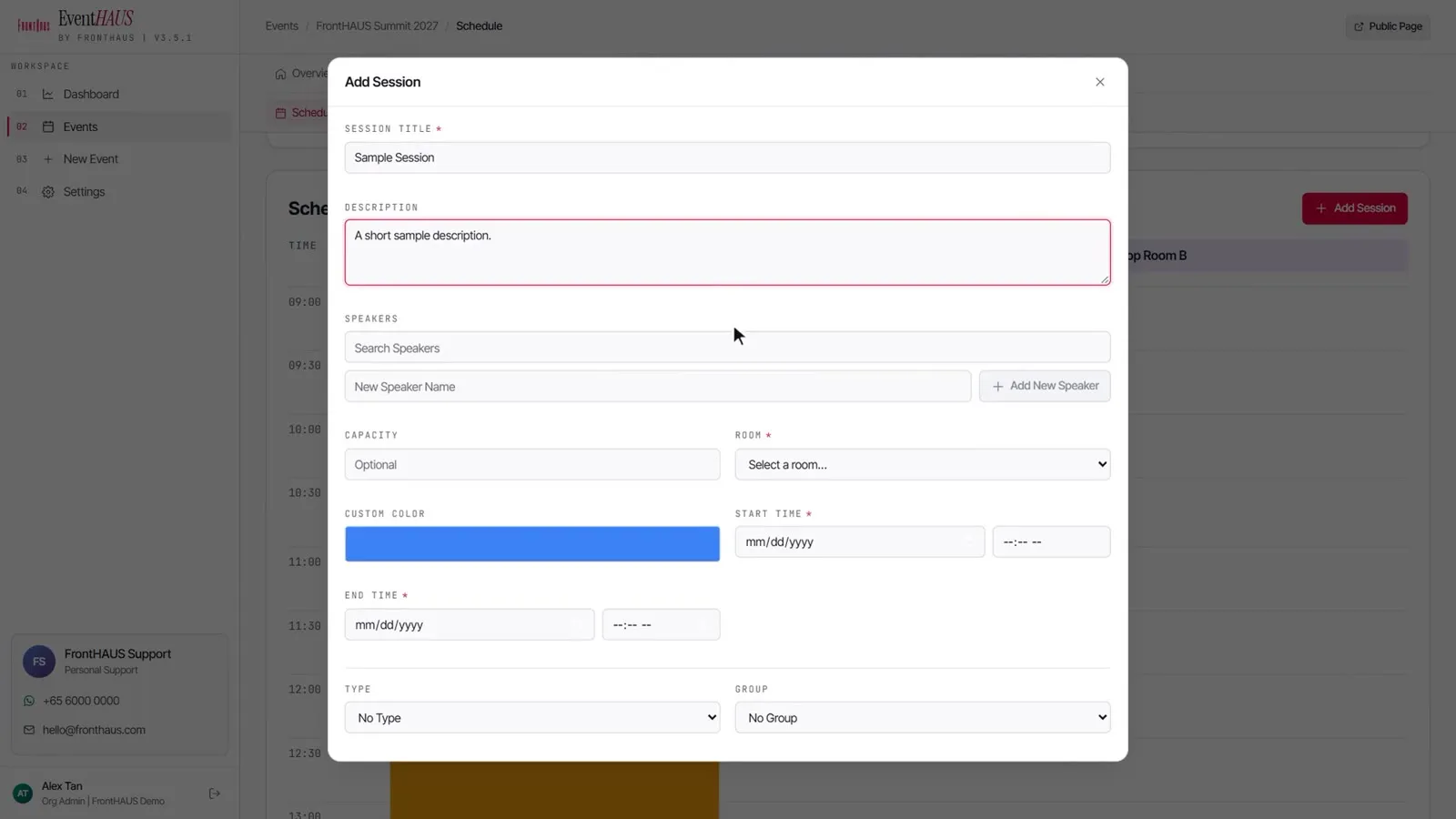
- Enter the Session Title and a short Description.
- Under Speakers, search for a speaker, or type a name and select Add New Speaker.
- Set the Capacity (optional) and the Room.
- Set the Start Time and End Time.
- Choose a Type and a Group.
- Further down the form, select Tags (guests filter by tags), and, if you want to, limit the session with Ticket Tiers or a Required Add-On. Turn on Hidden From Attendees to keep the session private: only organisers and the session’s speakers can see it.
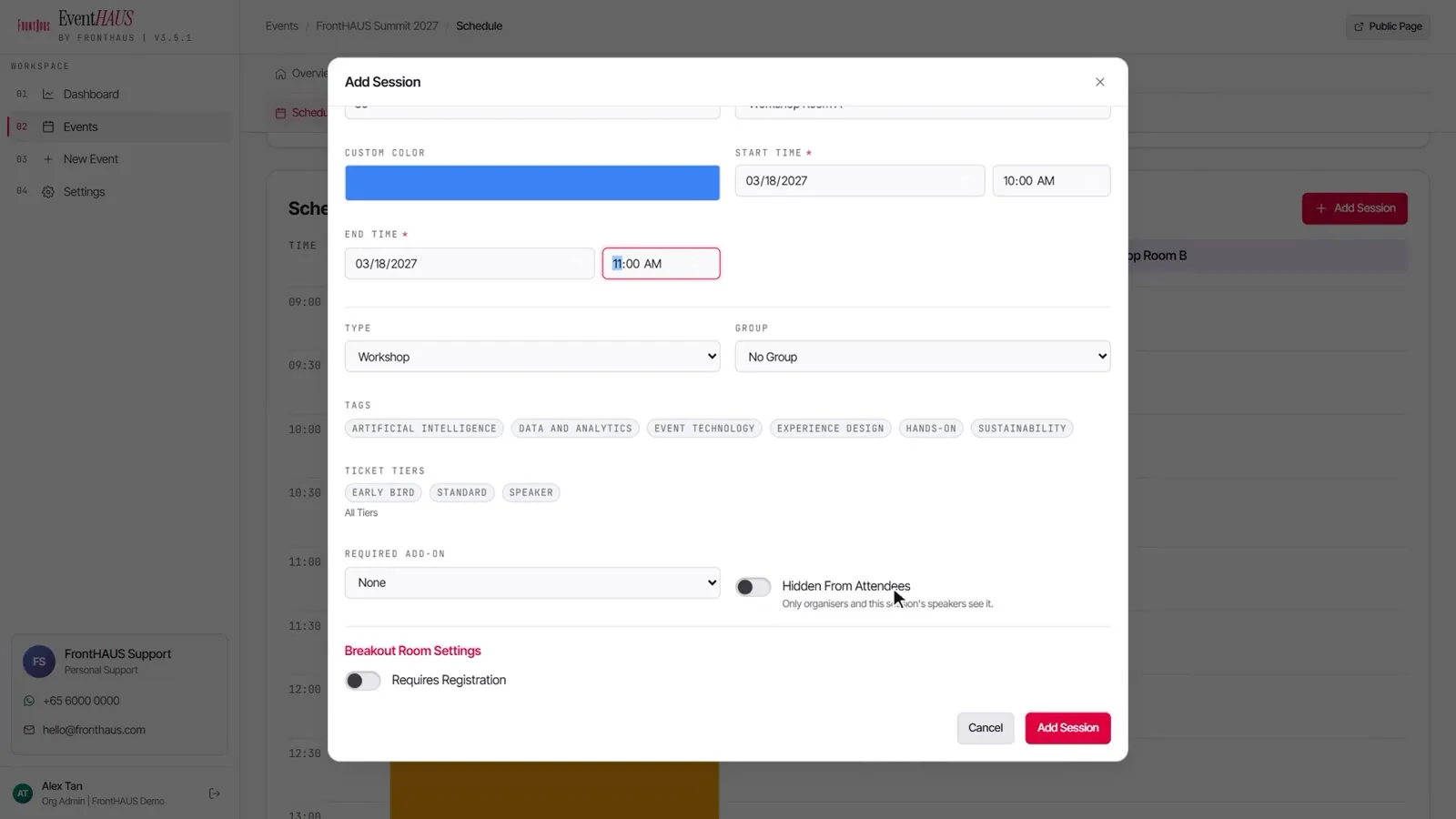
Once a session exists, open it to attach materials, get the Door QR and set credits. Breakout Room Settings turn a session into something guests book. Turn on Requires Registration to take bookings, with a waitlist if you want one.
Speakers
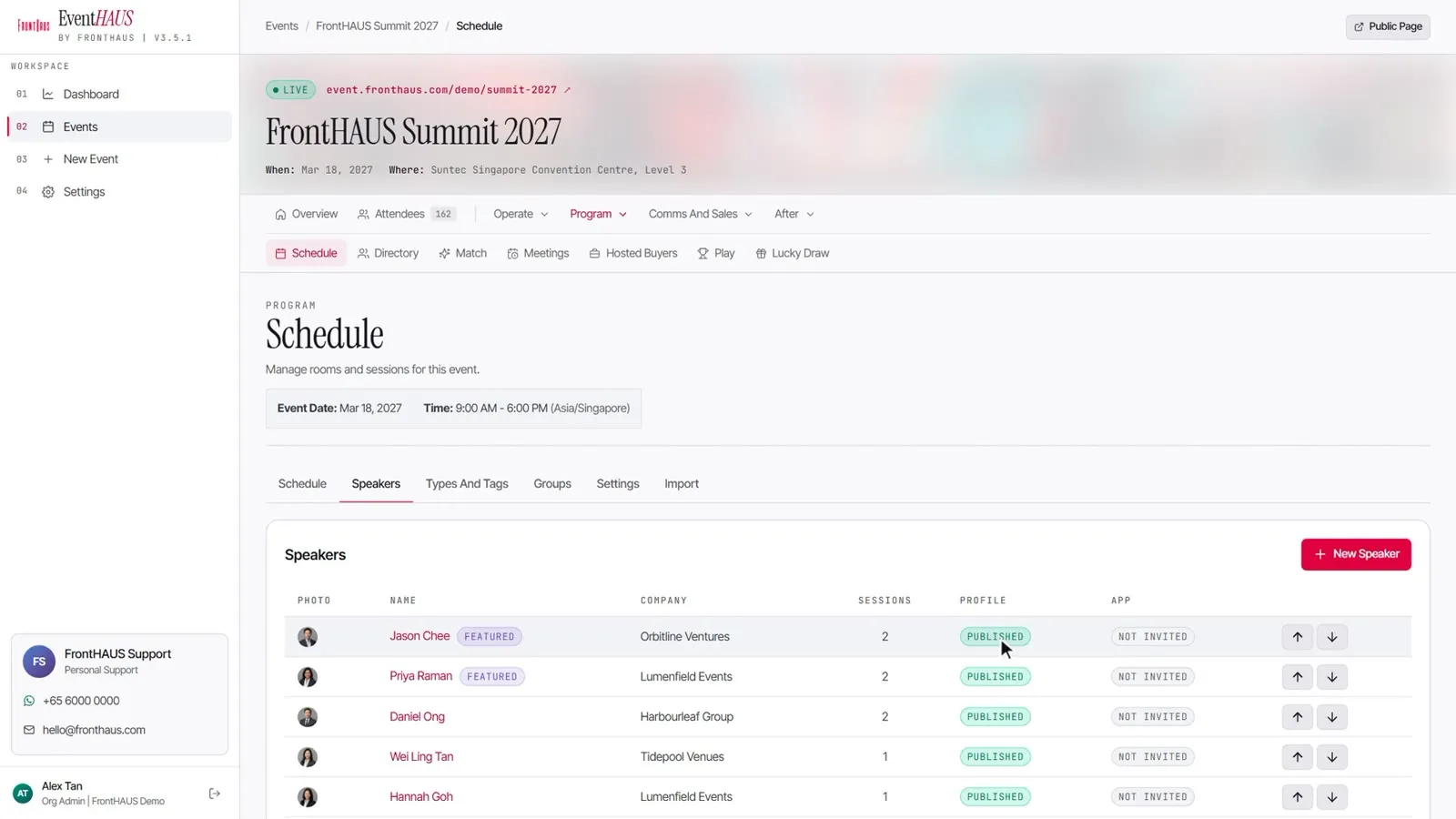
Section titled “Speakers”The Speakers tab lists everyone with Company, Sessions, Profile (Published or not) and App (Not Invited until you send an invitation). Select New Speaker to add one. Open a speaker to edit their bio, links and photo. Invite to App emails an invitation once there’s an email address. Tick the publication box only once the speaker has agreed.
Types, Tags, Groups And Booking
Section titled “Types, Tags, Groups And Booking”- Types And Tags: each type has its own colour. Tags drive the For You suggestions.
- Groups: for when guests have to choose, such as one workshop only.
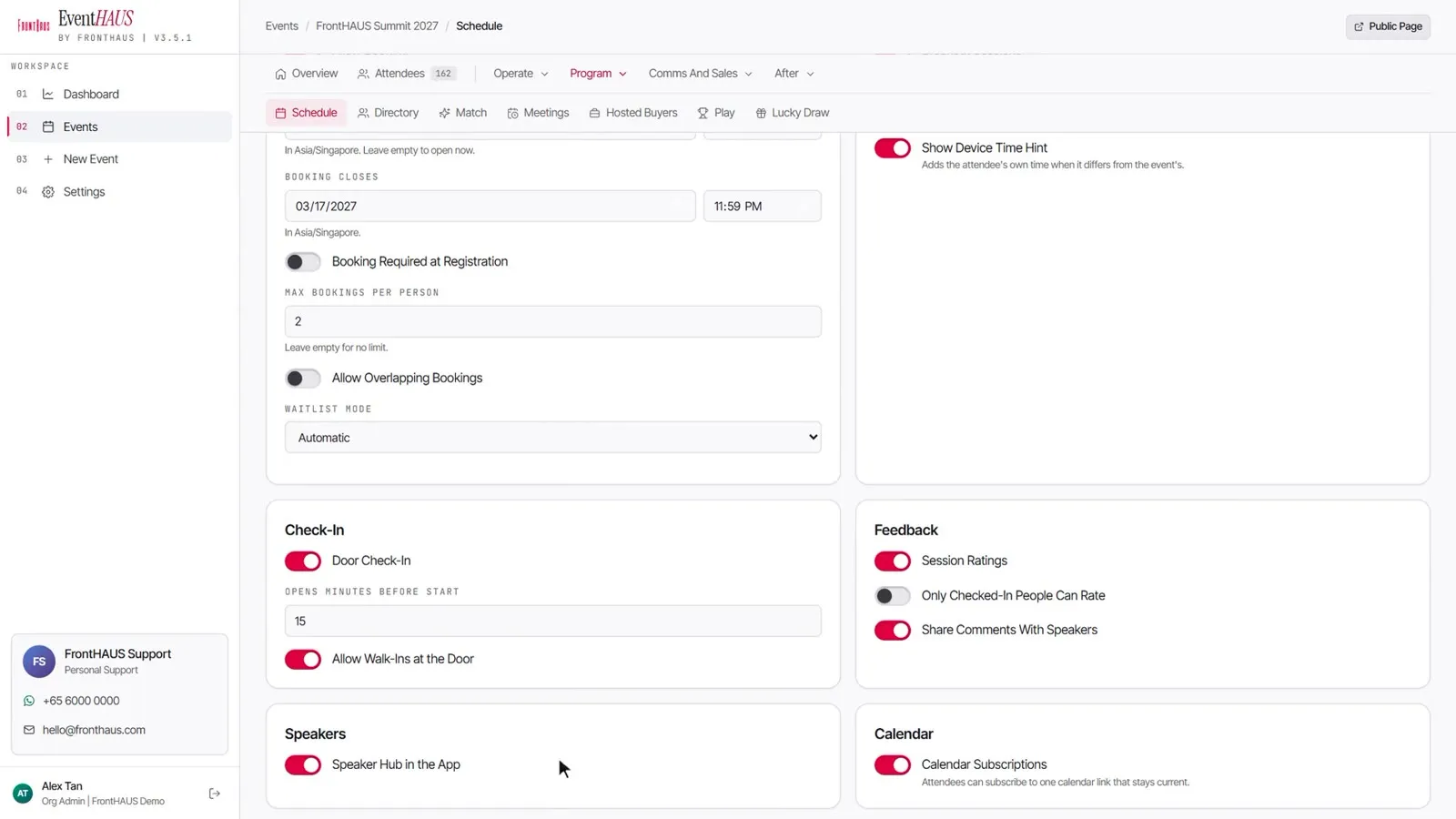
- Settings: turn on booking, then set when it closes (Booking Closes), Max Bookings per Person, Allow Overlapping Bookings and the Waitlist Mode. Further down are Door Check-In, Session Ratings and Calendar Subscriptions.
What Guests See
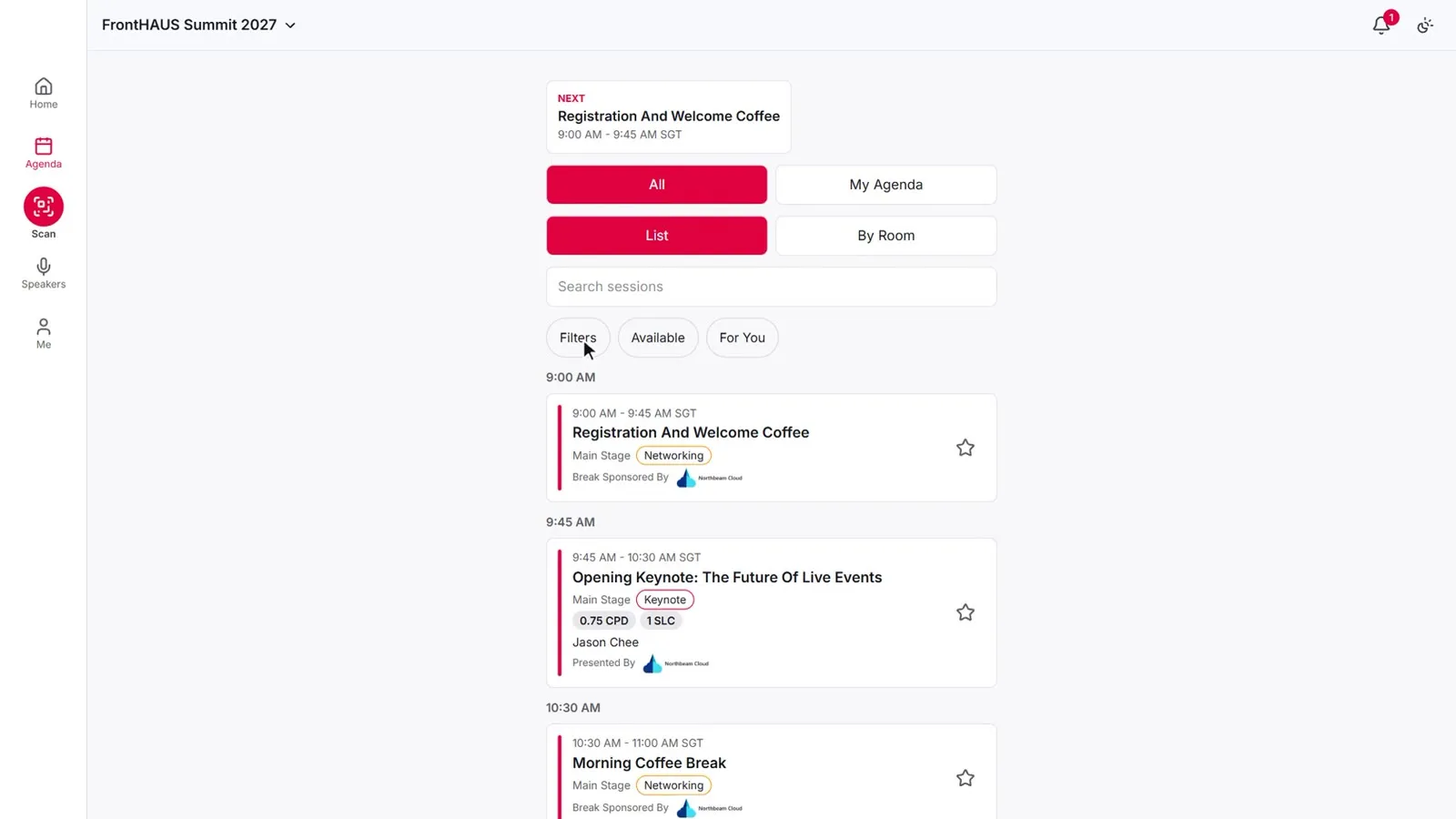
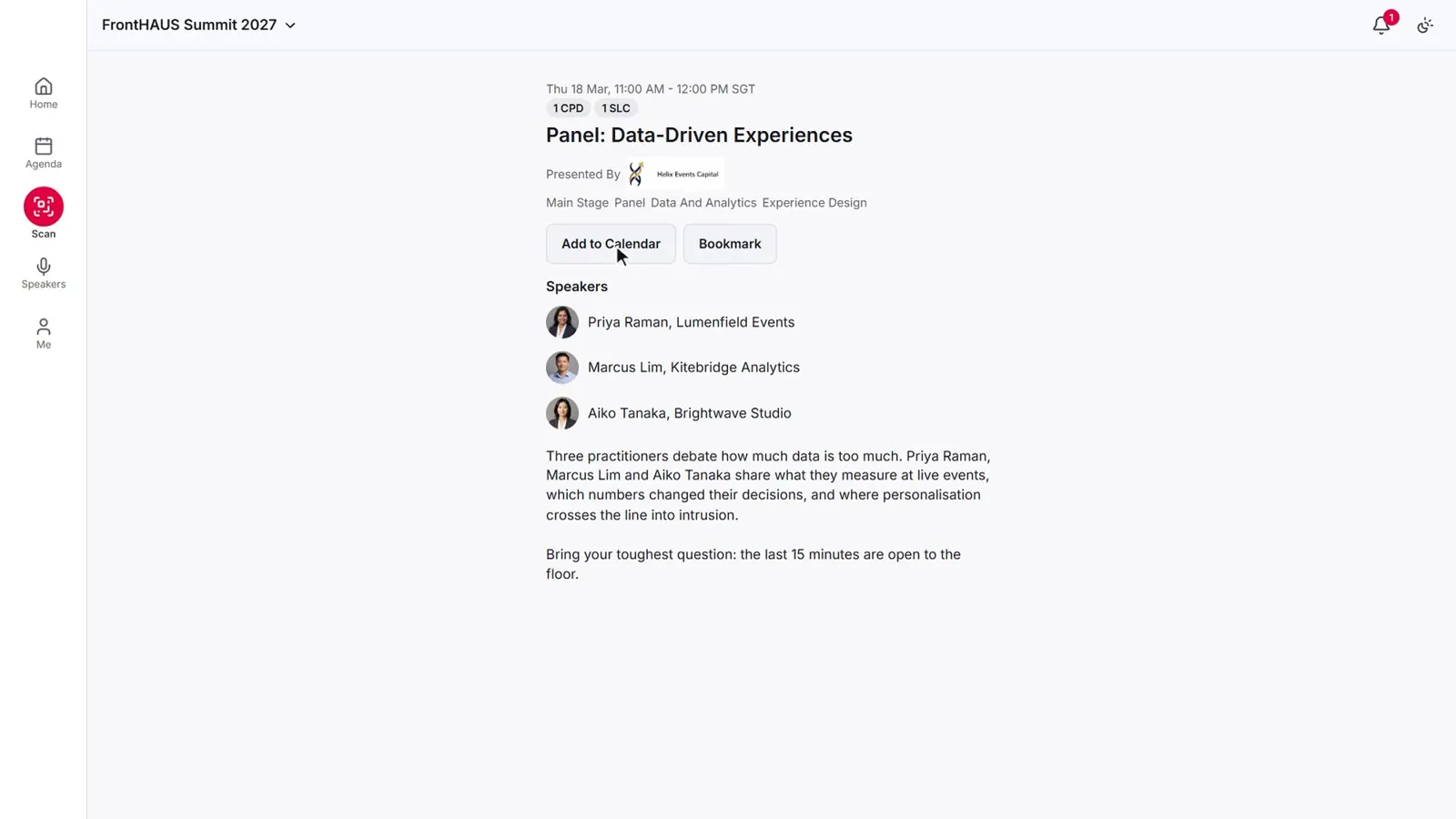
Section titled “What Guests See”The agenda shows the day in time order, with each card showing room, type, speakers and a star to bookmark. Guests switch between All and My Agenda, and between List and By Room. They can also use Search sessions, Filters, Available and For You. A session opens with its speakers, description, Add to Calendar and Bookmark. The Speakers tab shows published profiles only.
- Dashboard And Reports: find your numbers.